Compare Framecast with other screen recorders
Start with the video you need to make. A quick message, a scrolling screenshot and a finished product demo can call for different tools. These guides compare workflows and link to each vendor's current information.
Free to record and edit · A license is needed to export and share · macOS 14 or later
Find your comparison
- Framecast vs Screen Studio: compare two Mac demo recorders.
- Framecast vs Loom: a finished walkthrough or a video message.
- Framecast vs CleanShot X: screenshots and video in your daily work.
- Framecast vs FocuSee: test automatic zooms on a real demo.
- Framecast vs Screen Charm: compare the path to a polished Mac video.
- Framecast vs Cap: compare recording modes, editing and sharing.
- Framecast vs ScreenFlow: guided demos and timeline editing.
- Framecast vs Camtasia: choose around the size and shape of your tutorial.
What Framecast is built for
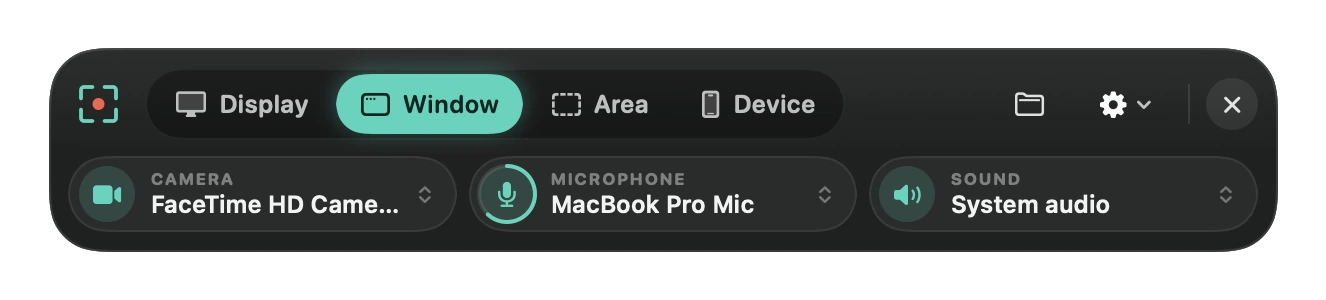
Framecast is a native Mac recorder that adds zooms around clicks and typing. You can adjust the cursor, edit through the transcript, add captions and review suggested blurs before sharing.
How to choose fairly
Record the same task in each app. Check how readable the video is, what takes time to fix and whether the export or link works where you publish. A feature list cannot tell you every part of that experience.
Framecast is free to record and edit. Export and sharing need a license. A one-time license and an optional monthly plan are available. Download Framecast or check current pricing.