Screen recorder for SaaS onboarding on Mac
Help new customers finish their first useful task. Record a workflow on your Mac, make the important clicks easier to see, and turn it into a video, a written guide or a demo people can click through.
Framecast is free to try, pay once to export. Requires macOS 14 Sonoma or later.
Start with the task your new user needs to finish
An onboarding video works best when it answers one question. How do I create my first project? Where do I invite a teammate? What should I see after connecting my account?
Choose one starting point and one finished result. Use a demo workspace with made-up data, then record the exact steps a new customer will follow. Explain any choice they need to make before moving on.
For a first-project walkthrough, try this outline:
- Show where to start in the workspace.
- Create and name a project using sample details.
- Complete the first useful action inside it.
- Show the result and explain what to do next.
Keep separate tasks in separate recordings. Someone looking for an invitation setting should be able to find it without watching your entire setup process.
Make small controls easier to follow
A new customer may not know where to look. Framecast adds automatic zooms around clicks and typing, so a small button or field can take the viewer's attention at the right moment. Adjust the zooms after recording to keep enough context around each action.
Use a wide view to explain the workspace, then a closer view for the next step. An arrow or short callout can help explain a choice that needs more than a click.
Learn about automatic zoom and annotations.
Add captions and check the words your product uses
Record your explanation as you work, then generate captions from your microphone audio on your Mac. Framecast can draw captions into the video or export SRT and VTT subtitle files for a video player.
Watch the finished tutorial with the sound off. Check product names, menu labels and any unfamiliar terms, and make sure the captions leave the controls visible. Captions should support the steps, with narration that explains why a customer would choose each option.
Give customers a written version of the same workflow
Some users want a checklist beside the app. Framecast can turn your recording into a step-by-step guide, with screenshots and instructions based on clicks and typing. Review the generated steps, rewrite anything unclear, then export a web page, Markdown with images or a PDF for your help center.
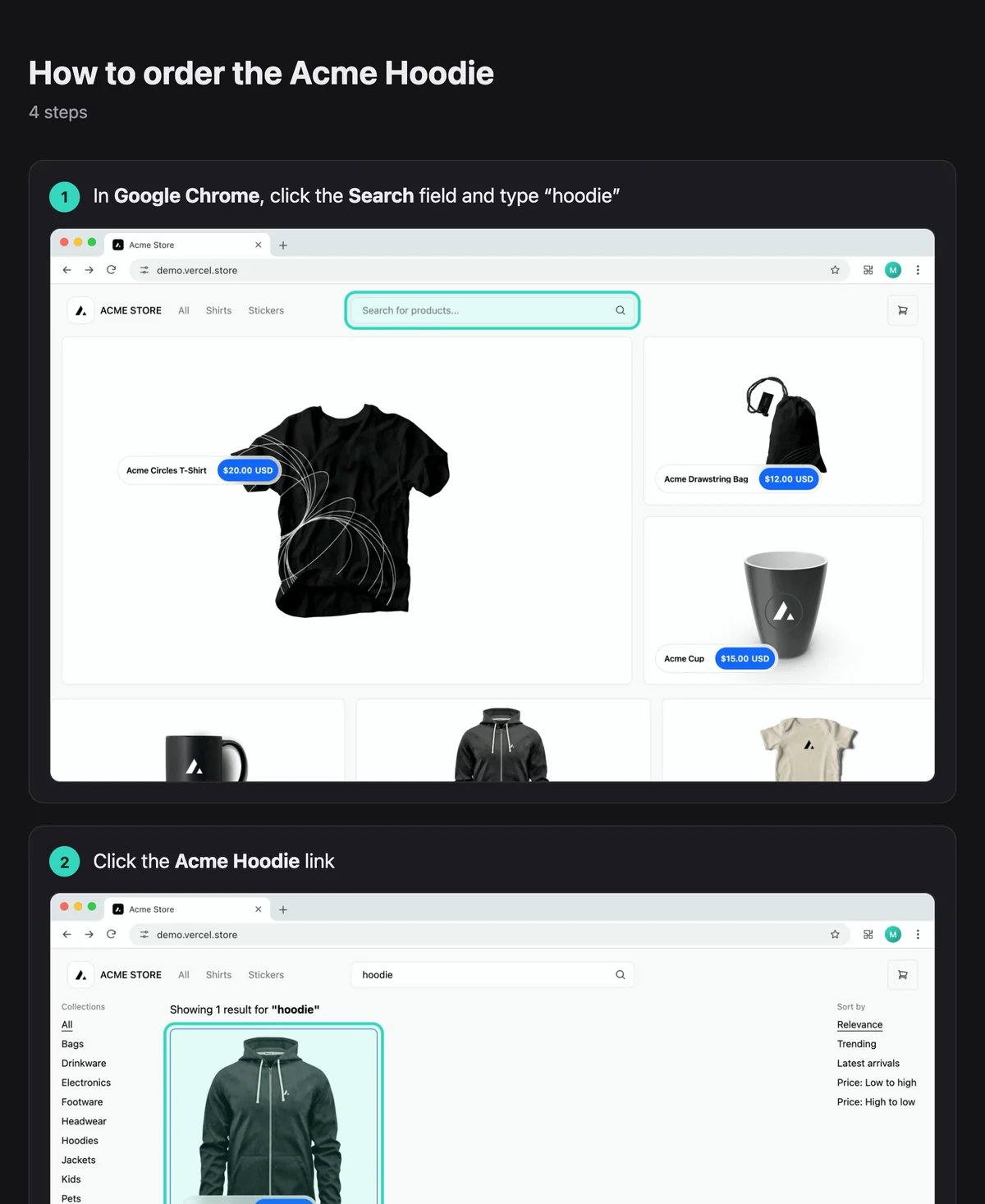
Give Framecast Accessibility permission before recording if you want steps to name the controls you click. Without it, steps use wording such as “Click here.” If you typed sensitive details, turn off “Quote what I typed” before editing the generated guide.
Let customers click through a practice demo
For a workflow people need to rehearse, export an interactive demo. The recording plays to each step, pauses and highlights where the viewer should click before continuing.
This is a guided recording, rather than a connection to the customer's live account. Export the demo folder, upload the whole folder to your web host, and link to it from your onboarding material. You can also embed it in a page with an iframe.
Learn how interactive demos work.
Review private details before sharing
Use sample data from the start. Before exporting, inspect the full recording for email addresses, account details and other information a customer should not see. Add blur or pixelate masks where needed and play those sections back to check their timing.
For a hosted video, Framecast offers share links with options for a password or invited viewers. Sharing uploads the finished video and associated page information; local recording and editing do not mean a hosted video stays on your Mac. Share links have storage and usage limits, listed in the guide.
Learn about masks and share-link options and limits.
Choose the format your help center needs
Export an MP4 for your video player, a written guide for your docs, or a click-through demo for a practice page. Keep the editable project so you can revisit the tutorial when your interface changes.
For an existing recording, the MOV to MP4 tool can help prepare a compatible video file. For a short visual example inside your docs, try the video to GIF tool. Use the full video when the task needs narration or captions.
See the export guide. If you are making a sales or launch video instead, read screen recorder for product demos.
Frequently asked questions
Can I record a browser-based SaaS product?
Yes. Record the browser window on your Mac while you demonstrate the workflow. Use a demo account and sample data, then review the result before sharing it.
Can one recording become a video and a written guide?
Yes. Framecast exports video and can generate a step-by-step guide from the recording. Review the guide's steps and screenshots before adding them to your docs.
Does an interactive demo change a customer's real account?
No. It plays your recording and pauses at highlighted steps. The viewer clicks to continue through the demonstration; it does not operate their live SaaS account.
Can I add subtitles to onboarding videos?
Yes. Framecast generates captions from microphone audio on your Mac. You can draw them into the video or export SRT and VTT subtitle files.
Are hosted share links unlimited?
No. Each license currently includes 25 GB shared across hosted videos, thumbnails and shared projects. Individual videos can be up to 5 GB. Read the share-links guide for current limits and keep your own copies.
Is Framecast free for SaaS onboarding videos?
Framecast is free to try, pay once to export. You can record and edit before buying a license. Exporting and hosted sharing require a license. See pricing for current plans.
Create your first onboarding walkthrough
Pick one task a new customer needs to finish. Record it, review the steps, and choose a format that fits your help center.