GuideZooms
Automatic zoom
Framecast zooms in where you click and type, and follows your pointer while it’s zoomed. You don’t have to place a single zoom yourself.
How it works
While you record, Framecast keeps track of every click and every key you press. When you open the recording, it adds a zoom around each burst of activity: a click on a button, a few clicks close together, or a stretch of typing. Clicks that come less than about two seconds apart share one zoom, so the camera doesn’t bounce in and out.
While a zoom is on screen, the camera follows your pointer smoothly. It looks a little ahead of where you’re going, so it never lags behind.
Turn automatic zooms on or off
- Open the Zoom tab in the inspector on the right.
- Under Automatic zoom, switch Auto zoom on clicks & typing on or off.
- Press Regenerate to place the automatic zooms again, for example after you changed the defaults below.
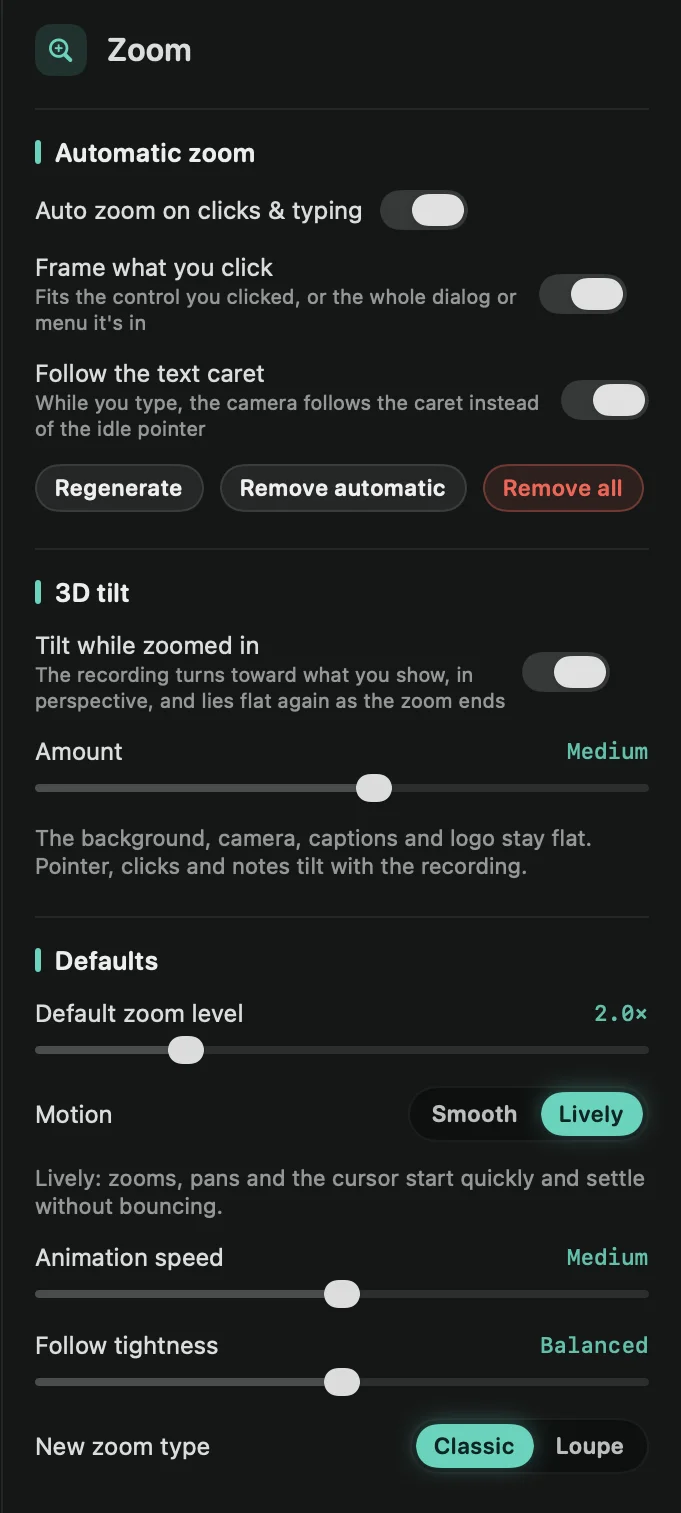
Remove automatic takes out only the zooms Framecast made and keeps the ones you added. Remove all clears the Zoom track.
Start without zooms
If you’d rather place every zoom yourself, turn automatic zooms off before you record: click the arrow on the Record button and untick Create zooms automatically. New recordings then open with an empty Zoom track.
Change one zoom
Automatic zooms are ordinary zooms. Click one on the Zoom track to change how far it zooms, make it stay on a fixed point, or delete it. See Add and edit zooms.
Tip: automatic zooms also know what you clicked. A menu or dialog is framed as a whole. See Frame what you click.