GuideEditing
Speed up waiting
Framecast finds the parts where you wait for something to load or finish, and plays them fast.
What counts as waiting
A stretch where nothing happens: you aren’t talking, the pointer and the keyboard rest, and almost nothing on screen changes. A spinner or a progress bar still counts as waiting. A page loading or a dialog closing doesn’t. A wait has to last about a second and a half or more.
Stillness before your first action or after your last one is left alone. A short moment at each end of a wait stays at normal speed, so the change of pace isn’t abrupt.
Speed it up
- Press Esc so nothing is selected, and open the Clip tab.
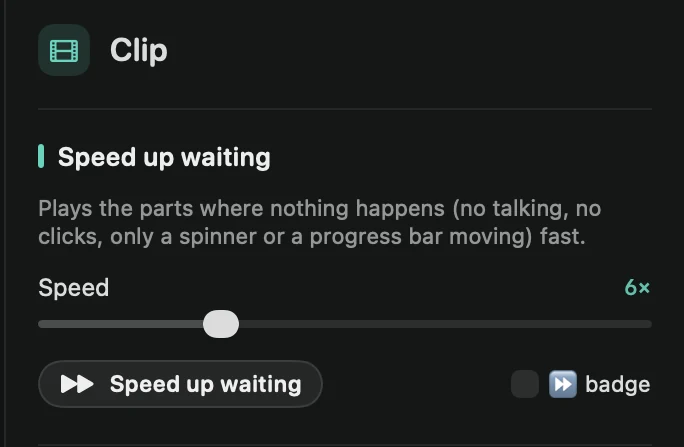
- Under Speed up waiting, set Speed, from 2× to 16×. It starts at 6×.
- Click Speed up waiting.
A message says how many waits were sped up and how much time they cover. Each wait becomes a clip of its own on the timeline. Press ⌘Z to undo. If Framecast finds no waits, it tells you something is always happening.
It’s also in + Add › Speed Up Waiting and in the command menu. Parts you already set to another speed are left alone.
The ⏩ badge
Speeding up the waits also ticks ⏩ badge. While a sped-up part plays, viewers see the speed in the top-right corner, so they know time is passing faster. Untick it to hide the badge.