GuideCamera & device
Camera layouts
Show your camera as a bubble, full screen, side by side with your recording, cut out in front of it, or not at all. Switch layouts as the video plays.
The five layouts
- Camera overlay: the camera bubble over your recording.
- Camera only: the camera fills the video.
- Split: the recording and the camera next to each other, or stacked in tall formats.
- Screen only: the camera is hidden.
- Camera cutout: you, without your background, in front of the recording. See Camera cutout.
To set the layout for the whole video, open the Camera tab in the inspector on the right and pick one under Layout.
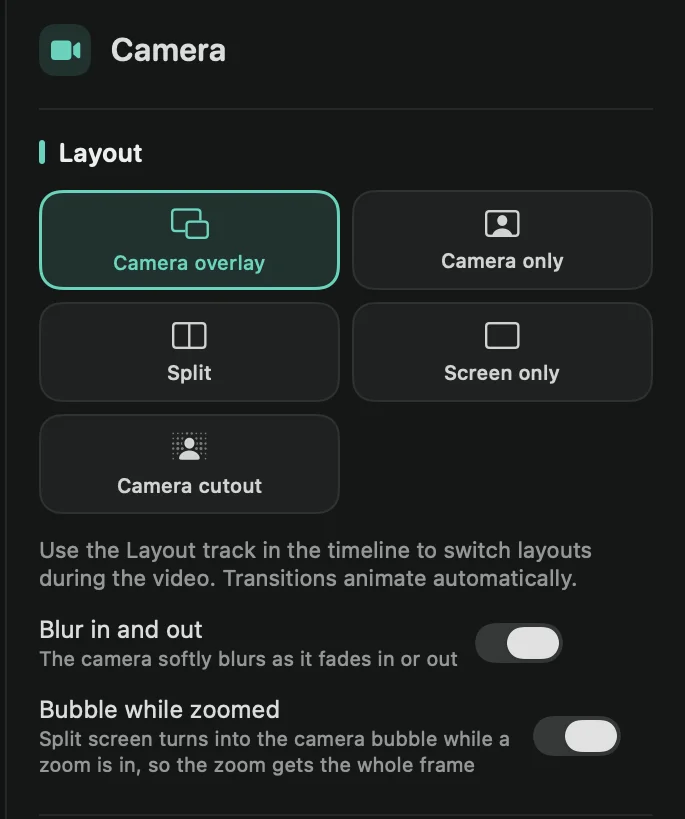
- Blur in and out: the camera softly blurs as it fades in or out.
- Bubble while zoomed: while a zoom is on screen, the split screen turns into the camera bubble, so the zoom gets the whole frame. It shows when you use Split.
New recordings have both on.
Switch layouts during the video
Camera recordings get a Layout lane in the timeline. Each block on it changes the layout for that part of the video. Everywhere else, the layout picked on the Camera tab applies.
- Move the playhead to where the change should start.
- Click Add above the timeline, choose Camera Layout and pick a layout. Or move the pointer over an empty part of the Layout lane: an outline shows where a click adds three seconds of Camera only. Drag along the lane instead to choose how long it is.
- Drag the block’s edges to set how long it lasts, or drag the whole block to move it.
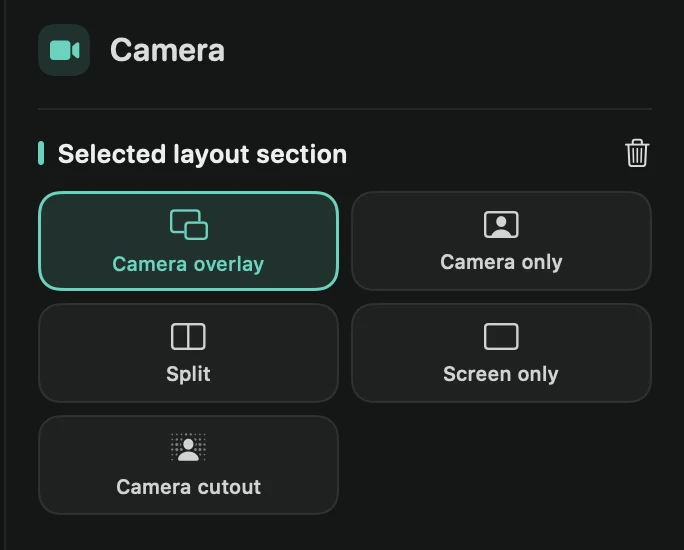
To change a block, select it and pick another layout under Selected layout section, or right-click it. To delete it, press ⌫ or the trash icon. To repeat a block later in the video, select it and press ⌘C, press Esc, move the playhead and press ⌘V.
Framecast animates every change from one layout to the next, so you don’t add transitions yourself.
Tip: start a video on Camera only to say hello, then switch to Camera overlay when you start showing your screen.