GuideEditing
Work with a range
Mark any stretch of time, then delete it, speed it up, mute it or zoom in on it, without splitting clips yourself.
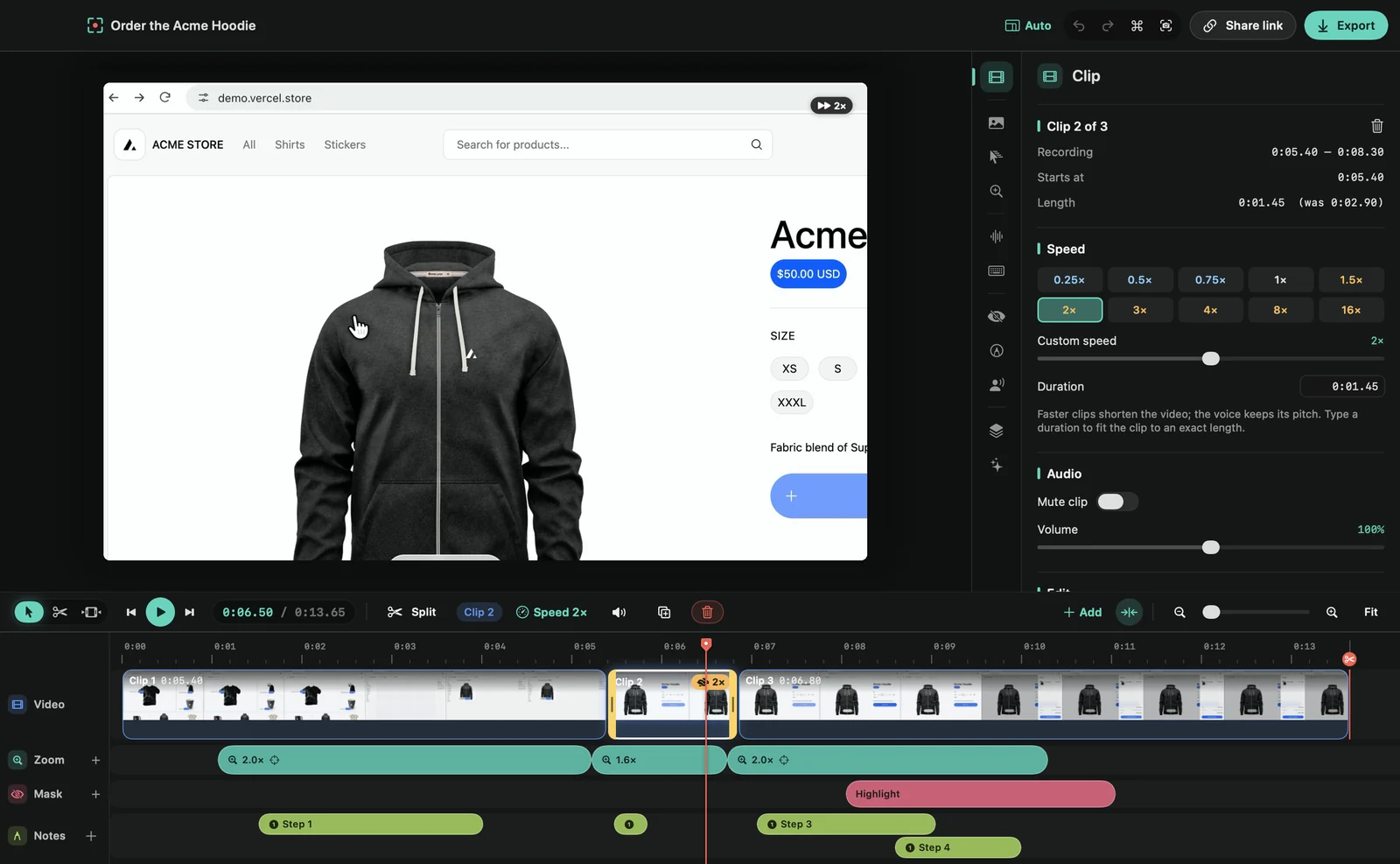
Mark a range
- Range tool: press R and drag across the timeline. Clicking a clip with the Range tool marks the whole clip.
- In and out: press I where it should start and O where it should end. Both use the playhead.
- One clip: press X to mark the clip under the playhead.
The range shows as a band across the timeline, with its length on top. Drag the handles at its edges on the ruler to adjust it. With snapping on, its edges snap to clip edges and to the playhead.
What you can do with it
The Clip tab opens with the range’s In, Out and Length, and these actions:
- Speed up or slow down: click a speed. The range becomes a clip of its own at that speed, and stays selected so you can fine-tune it.
- Delete (⌫): removes it and closes the gap.
- Mute: silences it.
- Split edges: splits the clips at both ends and changes nothing else.
- Add zoom: adds a zoom that covers exactly the range.
- Re-record narration: records your voice over it, in recordings with a microphone. See Re-record narration.
The bar above the timeline has the same speed, delete, mute and zoom buttons.
Clear it
Press Esc, or click the ⓧ next to the range.
Tip: the Set speed to commands in the command menu work on a range too.