GuideEditing
Volume and muting
Mute or change the volume of one clip, or of the whole microphone or system audio, and quiet the microphone between sentences.
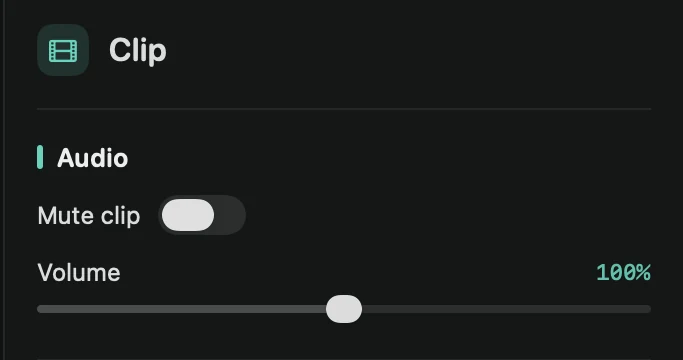
One clip
- Click a clip on the timeline.
- In the Clip tab, under Audio, switch on Mute clip, or drag Volume from 0% to 200%.
Press M to mute or unmute the selected clips, or the clip under the playhead when nothing is selected. You can also right-click a clip and choose Mute, or click the speaker button above the timeline. A muted clip shows a crossed-out speaker.
A clip’s volume changes both the microphone and the system audio in that clip. To mute only part of a clip, mark that part as a range and click Mute.
The whole recording
Open the Audio tab:
- Microphone: Volume from 0% to 200%, Mute, and Mute when not talking (see below).
- System audio: Volume and Mute. This section only appears when the recording has system audio.
The speaker button on the Video lane, at the left of the timeline, mutes and unmutes the microphone too.
Clip and track volumes work together. A clip at 50% with the microphone at 200% plays at the level you recorded.
Mute when not talking
Switch on Mute when not talking under Microphone and the microphone goes quiet between sentences, so typing, clicks and room noise drop out. Framecast finds where you talk on your Mac; the tab shows “Analyzing speech…” until it’s done.
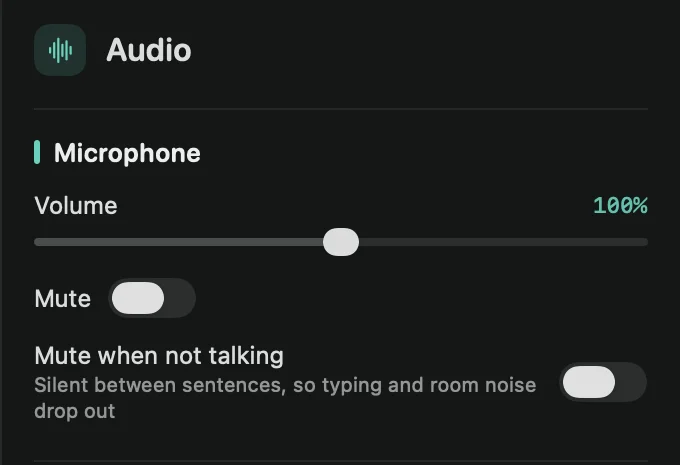
It’s off at first. Your recording isn’t changed, so switch it off to hear everything again.
Tip: background music, click sounds and voiceovers have volume controls of their own. See Background music.