GuideLook & feel
Frame and shadow
Set how much space surrounds your recording, how round its corners are, and the border and shadow that lift it off the background.
Frame
Open the Background tab in the inspector on the right and scroll down to Frame.
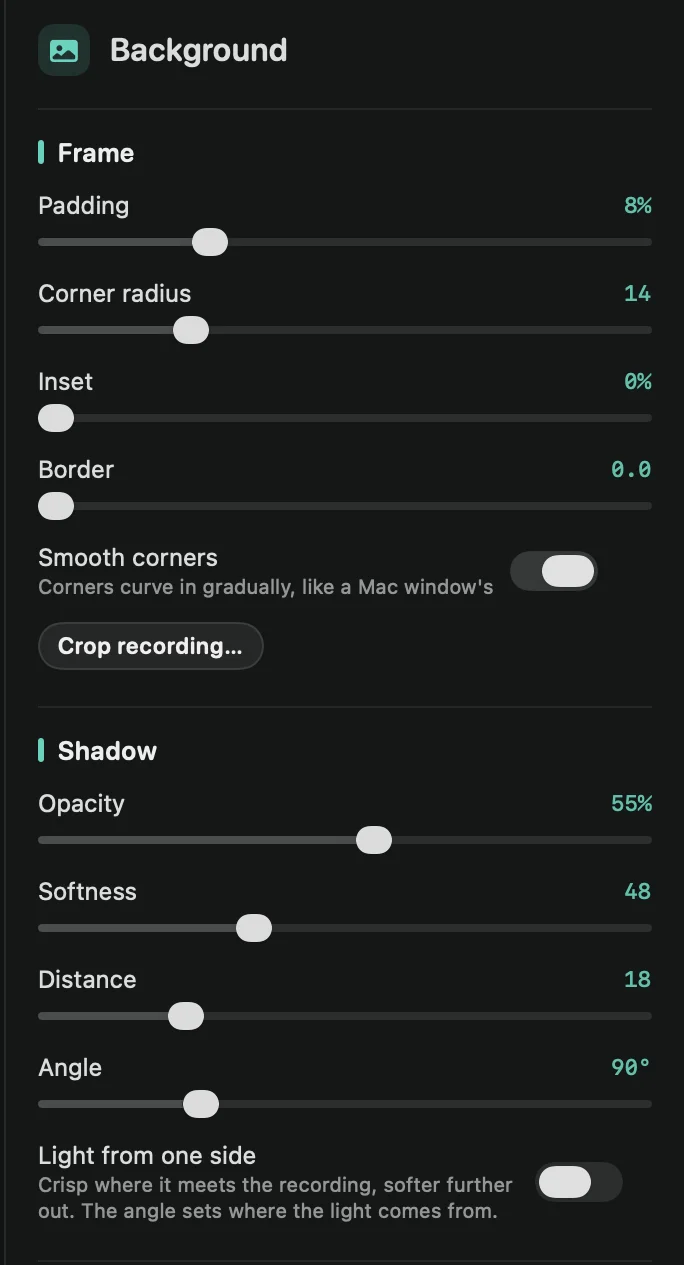
- Padding: the space between the recording and the edge of the video, up to 30%. More padding shows more background. Window recordings start with a little extra.
- Corner radius: how round the recording’s corners are. 0 gives square corners.
- Inset: trims the same amount off every edge of the recording, up to 10%. Use it to hide untidy edges.
- Border: a thin line around the recording. Once it’s above 0, Border color appears.
- Smooth corners: the corners curve in gradually, like a Mac window’s. New recordings have it on; older projects keep their corners until you switch it on.
To cut away a bigger part of the recording, use Crop recording… under the sliders. See Crop.
Shadow
The Shadow section shapes the shadow under the recording:
- Opacity: how dark it is. At 0% there’s no shadow.
- Softness: how blurry its edge is.
- Distance: how far it falls from the recording.
- Angle: which way it falls. 90° is straight down.
- Light from one side: the shadow is crisp where it meets the recording and softer further out, as if a light shone from one side. Angle then sets where the light comes from. It’s off at first.
Tip: once the frame looks right, save it with your background as a preset, so every video matches. See Presets.