GuideExport & share
Export a GIF
Turn your video into a looping GIF for docs, READMEs, chats and emails. Choose the frame rate and size, then save it or copy it.
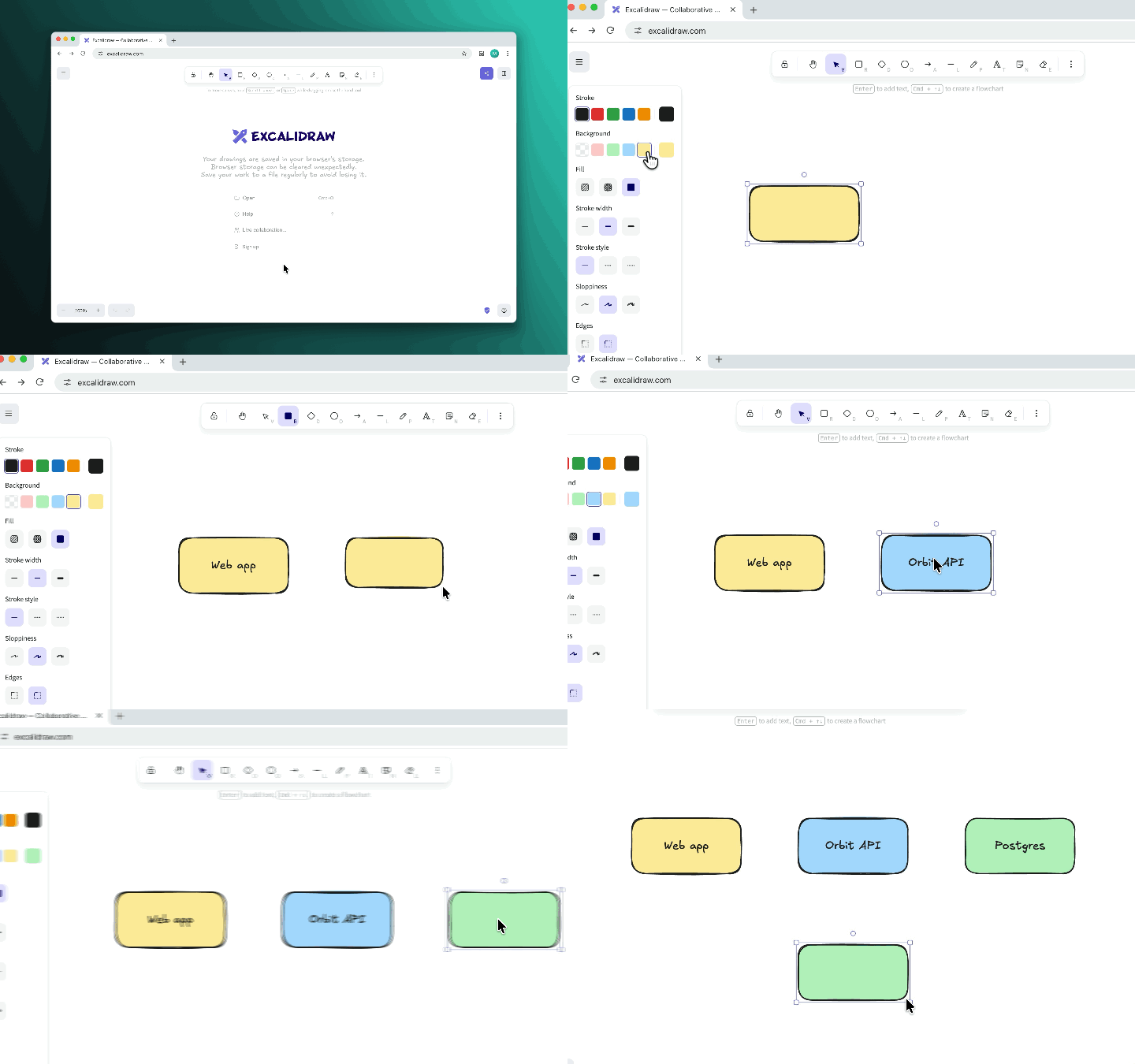
Make a GIF
- Click Export or press ⌘E.
- Next to Export as, choose GIF.
- Pick a Frame rate and an Output size.
- Click Export to file, or click Copy to clipboard (⌘⏎) to paste the GIF straight into a chat or a document.
The GIF shows everything you see in the editor, from zooms to the background and cursor, and it loops forever. GIFs have no sound.
Options
- Frame rate: 10, 15, 20 or 30 FPS. Framecast starts at 20. Fewer frames make a smaller file.
- Output size: 480, 720 or 1080 px along the longer side. Smaller GIFs load faster.
The estimates under the options show how long the export will take and how big the file will be, measured on your Mac with these settings. GIF files grow fast with length and size, so keep them short.
GIFs right after recording
In Settings › Quick export, set Format to GIF. Then Copy and Save on the after-recording card, and Record & Copy, make GIFs too.
Tip: for a loop with no jump at the end, turn on Loop cursor position on the Cursor tab. The pointer then glides back to where it started as the video ends.