GuideCaptions & transcript
Transcription language
Choose the language Framecast listens for, teach it names and jargon, and decide whether new recordings are transcribed on their own.
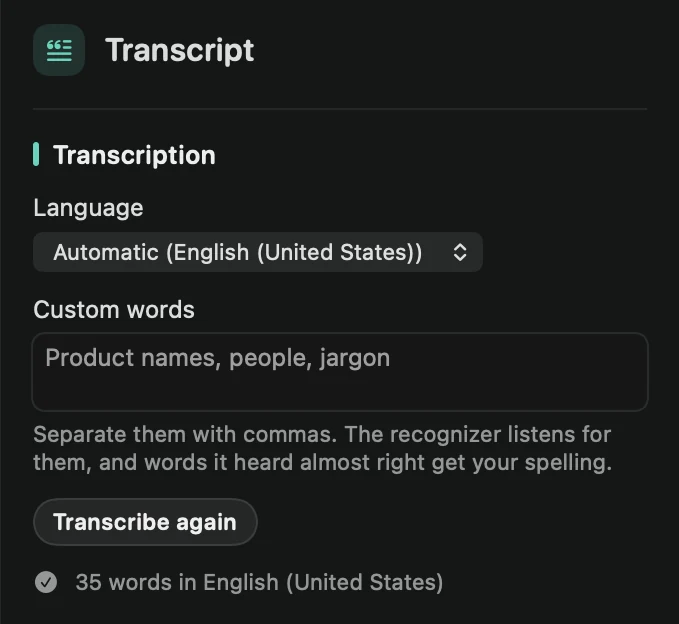
Pick the language
Framecast transcribes your microphone on your Mac with Apple’s speech models. Nothing is uploaded. The Transcription section is on both the Transcript and the Captions tabs, and what you set there is saved with the project.
The Language menu starts on Automatic, with your default language in brackets, for example Automatic (English (United States)). Automatic uses that language unless another language already on your Mac clearly fits better.
If you speak another language, pick it from the list. Languages marked download are fetched once, then work offline.
Add custom words
Type product names, people and jargon in Custom words, separated by commas. Framecast listens for them, and words it heard almost right get your spelling.
A new language or new custom words only apply after you press Transcribe again. Until then, the status line says “Changed since: transcribe again to use it.” The new transcript replaces the old one when it’s done, and your cuts stay as they are.
Transcribe new recordings automatically
Open Settings › AI & Captions:
- Transcribe new recordings automatically is on by default. Framecast starts transcribing when you first open a recording with microphone audio. Turn it off to transcribe only when you press Transcribe.
- Language (e.g. en-US) sets the default language that Automatic starts from.
While it works, the editor’s toolbar shows “Transcribing…” with its progress. With Automatic, it shows “Finding the language…” first.
Tip: once the words are right, see Captions and Edit with the transcript.