GuideRecording
Recording options
The gear on the recording bar holds the options you change most: what to hide while you record, what happens after, the countdown and the frame rate.
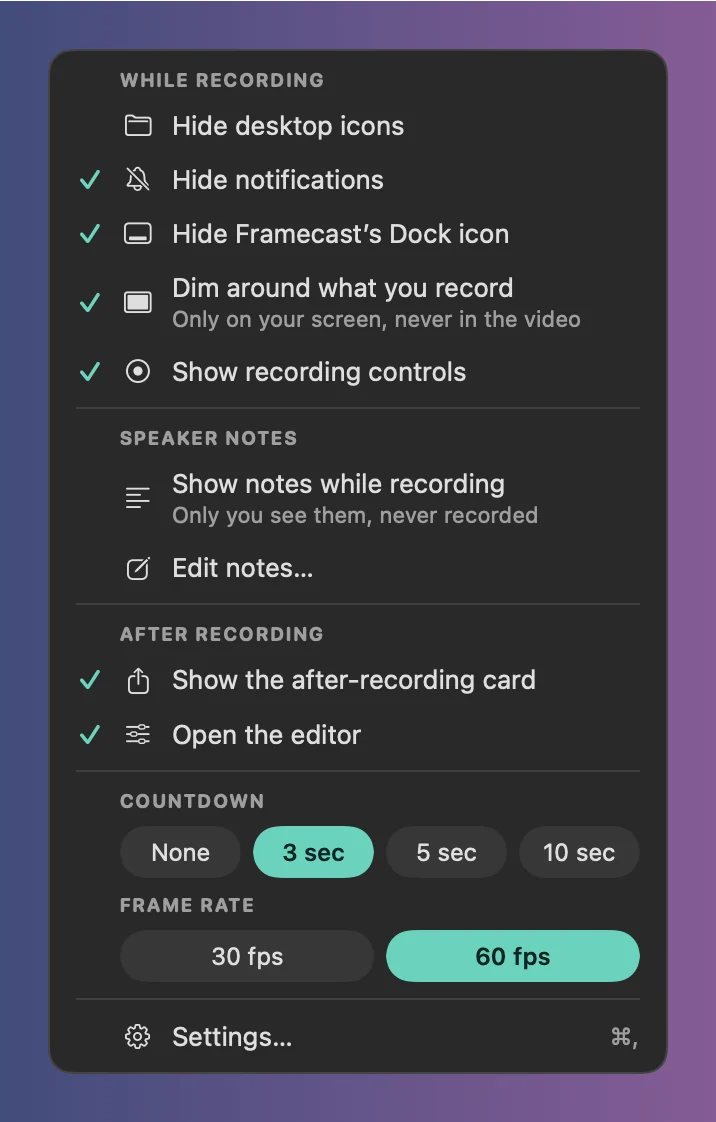
The gear menu
Click the gear on the recording bar. The menu stays open while you switch things on and off.
- Hide desktop icons (off at first): leaves the files and folders on your desktop out of the recording.
- Hide notifications (on): keeps notification banners out of the recording.
- Hide Framecast’s Dock icon (on): the icon leaves the Dock while you record and comes back when you stop. Untick it to keep the icon: it shows a dot while you record and two bars while you’re paused, and its menu offers Stop Recording and Pause.
- Dim around what you record (on): dims the rest of the screen when you record a window or an area, only on your screen.
- Show recording controls (on). See While you record.
- Show notes while recording and Edit notes…. See Speaker notes and teleprompter.
- Show the after-recording card and Open the editor decide what appears when you stop. See After recording.
Countdown and frame rate
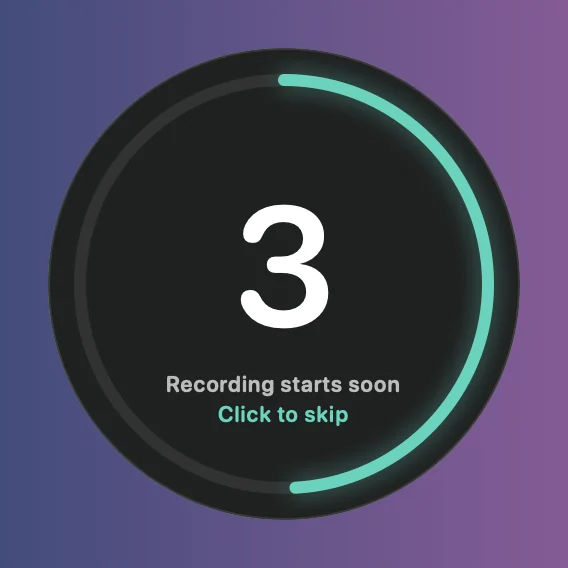
Countdown gives you None, 3 sec, 5 sec or 10 sec to get ready after you press Record. It starts at 3 seconds. Click the countdown to skip it, or press ⌥⌘↩ or ⌥⌘esc to cancel it.
Frame rate is 60 fps at first, which makes the pointer and scrolling smoother. 30 fps makes smaller files.
Settings › Recording
Click Settings… at the bottom of the gear menu, or press ⌘, while the bar is open. The Recording tab repeats several of the options above, plus:
- Play a sound when recording starts and stops, on at first. You hear a soft sound; your recording doesn’t.
- Record with HEVC (smaller files), on at first.
- Record system audio by default. See System audio.
- Permissions, to check or allow screen recording, camera, microphone and Accessibility. See Permissions.