GuideZooms
3D tilt
While zoomed in, your recording turns toward your pointer in perspective, like a camera moving around it. It lies flat again when the zoom ends.
Turn it on
- Open the Zoom tab in the inspector on the right.
- Under 3D tilt, switch on Tilt while zoomed in.
- Set Amount anywhere from Subtle to Strong.
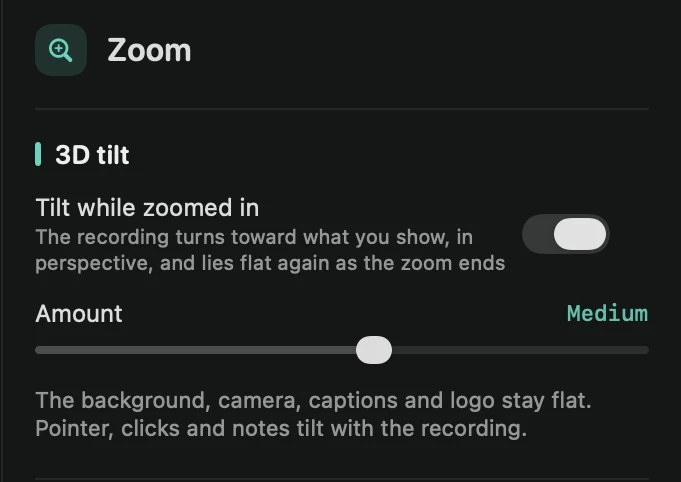
Every zoom in the video now tilts, the automatic ones and the ones you added. You can also turn it on from the command menu: press ⌘K and type “3D”.
How it moves
- The tilt comes in with each zoom and goes away as the zoom ends.
- The screen turns toward your pointer: work on the right and the right side comes closer, move left and it turns the other way. It glides after the pointer, so it never jerks.
- The spot the zoom shows stays where the zoom puts it.
What tilts
The recording tilts, and so do your pointer, click effects, annotations and blurs on it. The background, your camera, captions, keyboard shortcuts and your logo stay flat on top.
Tip: 3D tilt goes well with motion blur, which smooths the turn when the camera moves fast.