GuideZooms
Zoom defaults
Set the zoom level, motion, speed and follow style your zooms start with, and copy one zoom’s settings to the others.
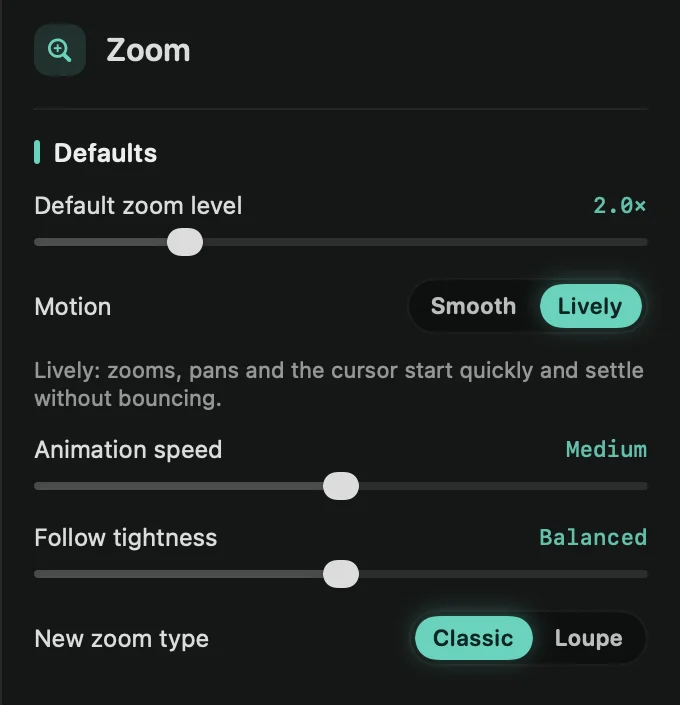
The defaults
Open the Zoom tab. The Defaults section at the bottom holds:
- Default zoom level: how far new zooms zoom in, from 1.1× to 5×. Automatic zooms use it when you regenerate them.
- Motion: how zooms, pans and the cursor move. Smooth eases in and out gently. Lively starts quickly and settles without bouncing. New recordings use Lively; older projects keep Smooth until you change it.
- Animation speed: Slow, Medium or Fast. How quickly the camera zooms in and out. It changes every zoom right away.
- Follow tightness: Relaxed, Balanced or Tight. How closely the camera follows your pointer. Relaxed lets the pointer move further before the camera pans, and pans more gently. It also changes every zoom.
- New zoom type: Classic or Loupe.
Copy one zoom to the others
Select a zoom and set it up the way you like. Under Selected zoom:
- Apply to all zooms gives the other zooms its zoom level, type and Instant setting. Where each one points stays the same.
- Set as default makes new zooms, and automatic zooms you regenerate, use its zoom level and type. The button reads Default when they already match.
Both are also on the right-click menu of a zoom on the timeline, and in the command menu.
To copy all of a zoom’s settings, where it points included, to one other zoom, select it and press ⌘C, then select the other zoom and press ⌘V.
Regenerate automatic zooms
Under Automatic zoom, click Regenerate to place the automatic zooms again with your current defaults. Zooms you added yourself stay, and so do automatic zooms you moved or resized on the timeline. See Automatic zoom.
Tip: presets keep your zoom settings along with the rest of the look, so every video starts the same way.