GuideEditing
Change the speed
Speed up or slow down any part of your video, from 0.25× to 16×. Voices keep their pitch.
Speed up part of a video
- Move the playhead to where the fast part starts and press S to split. Do the same where it ends.
- Click the clip in the middle.
- In the Clip tab, under Speed, click a speed from 0.25× to 16×.
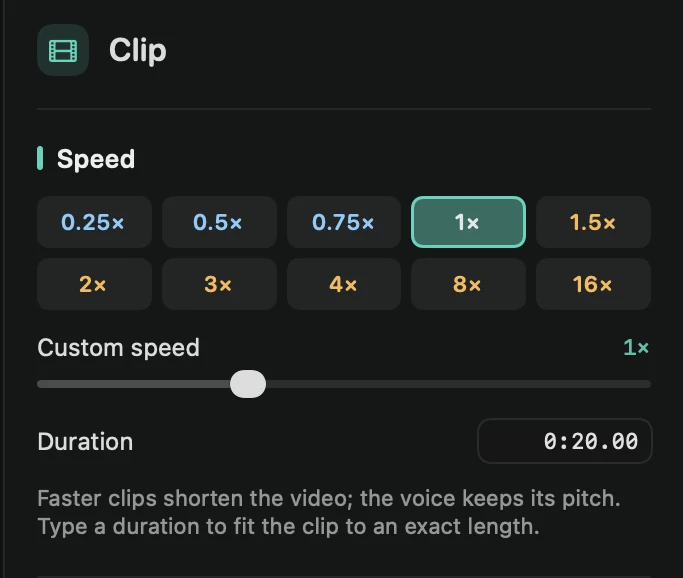
A faster clip makes the video shorter, and the voice keeps its pitch. You can also mark the part as a range and pick a speed: the range becomes its own clip.
An exact speed or length
- Custom speed: drag for any speed between 0.25× and 16×.
- Duration: with one clip selected, type the length you want, such as 2.5 or 0:02.50, and press Return. The speed changes so the clip fits.
- Reset speed: back to 1×.
A clip that isn’t at 1× shows its speed on the timeline.
Other ways
Right-click a clip and choose Set Speed, or use the Speed menu above the timeline. Custom… opens the Clip tab. With several clips selected, the speed applies to all of them.
Show the speed in the video
The ⏩ badge shows viewers the speed in the top-right corner while a part at 1.5× or faster plays. To turn it on, press Esc so nothing is selected, open the Clip tab and tick ⏩ badge under Speed up waiting.
Tip: Framecast can find the slow parts for you. See Speed up typing and Speed up waiting.