GuideEditing
The editor
A tour of the editing window: the toolbar, the preview, the inspector with its tabs, and the timeline.
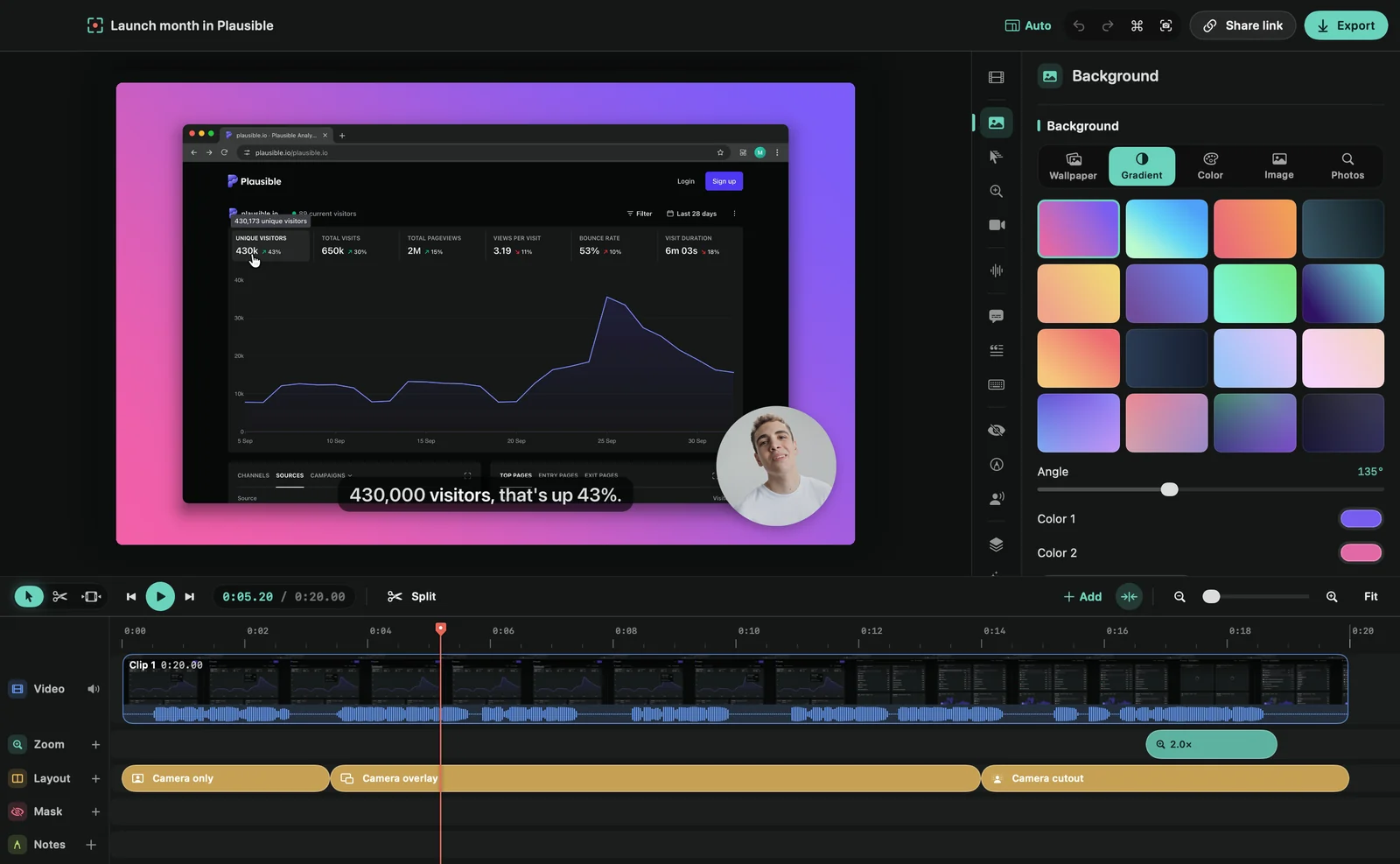
The toolbar
At the top you see the project’s name, and a small progress pill while Framecast works in the background, such as “Transcribing… 40%”. On the right:
- The aspect ratio menu, which shows the current shape. See Aspect ratio.
- Undo, Redo, the command menu and Copy current frame as image.
- Share link and Export. See Share links and Export.
If a project’s edits had to be opened from a backup, or a newer version of Framecast saved it, a note under the toolbar says so. See Backups of your edits.
The preview
The large picture plays your edited video. Double-click it to play or pause. When you select a mask, an annotation or a fixed-point zoom, handles appear on the preview so you can drag it into place.
The inspector
The panel on the right holds every setting. The column of icons along its edge switches tabs; hover an icon to see its name. The tabs are Clip, Background, Cursor, Zoom, Camera, Audio, Captions, Transcript, Keyboard, Masks, Annotations, AI Voiceover, Device, Presets and Publish.
Some tabs only appear when they apply: Camera when you recorded your camera, Device for iPhone and iPad recordings, and Captions and Transcript when there’s microphone audio or a transcript. Selecting a zoom, mask or annotation on the timeline opens its tab.
The timeline
The bar at its top has the tools, playback, Split, + Add, snapping and the timeline zoom. Below are the lanes: Video with your clips, Zoom, Layout (camera recordings only), Mask and Notes for annotations. A Keys lane appears when keyboard shortcuts are shown, and a Voice lane once you add a voiceover. Drag the line above the timeline to make it taller or shorter. See Edit on the timeline.
Tip: almost everything has a key. See Editor keyboard shortcuts.