GuideLook & feel
Show keyboard shortcuts
Show the shortcuts you press, like ⌘C, as labels in the video. Choose which keys count, where the labels sit and how they look.
Turn it on
- Open the Keyboard tab in the inspector on the right.
- Switch on Show keyboard shortcuts.
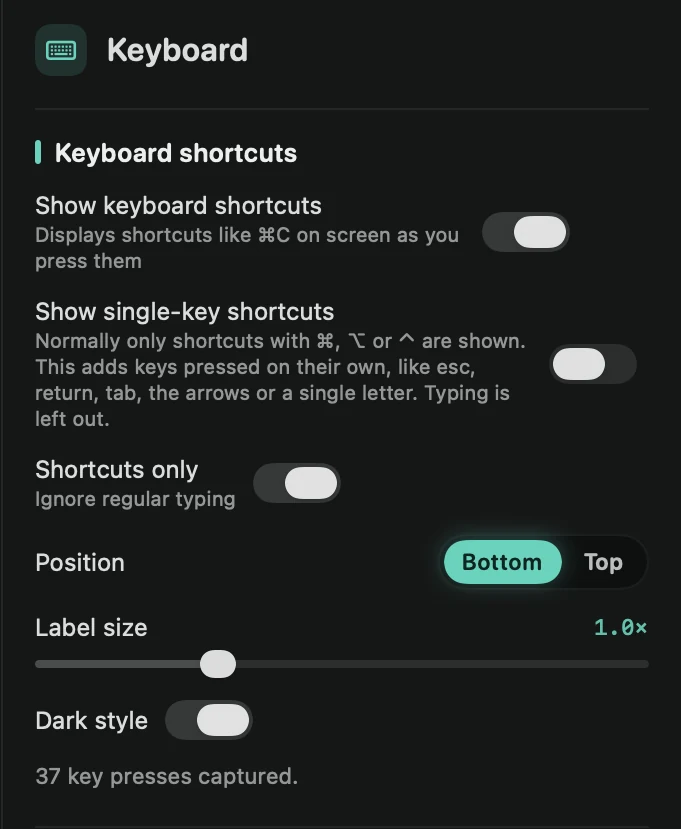
Framecast can only show keys it noted while you recorded, and it needs the Accessibility permission for that. If no keys were captured, the tab says so and offers Open Accessibility settings. Turn it on before your next recording. See Permissions.
Choose what shows
- Shortcuts only (on at first) shows combinations with ⌘, ⌥ or ⌃ and ignores regular typing. Turn it off to show what you type too.
- Show single-key shortcuts adds keys pressed on their own, such as esc, return, tab, the arrows or a single letter. Typing is still left out.
- Position: Bottom or Top.
- Label size: from 0.6× to 2×.
- Dark style: dark labels with white keys. Turn it off for light labels.
Leave one label out
Each label is a block on the Keys lane under the timeline. Select one and press ⌫, or right-click it and choose Hide from Video. Only that label leaves the video, and it stays hidden when you cut or speed up the video.
Hidden labels are listed under Hidden labels on the Keyboard tab. Press Show to bring one back, or Show all.
Tip: the Typing section on the same tab speeds up the parts where you were typing. See Speed up typing.