GuideAudio
AI voiceover
Type a script and Framecast reads it aloud, right where you want it in the video. Use a free macOS voice or your own OpenAI or ElevenLabs account.
Add a voiceover
- Open the AI Voiceover tab in the inspector.
- Pick a Provider and a Voice.
- Type what the voice should say in the script box.
- Move the playhead to where the voice should start, then click Insert at playhead.
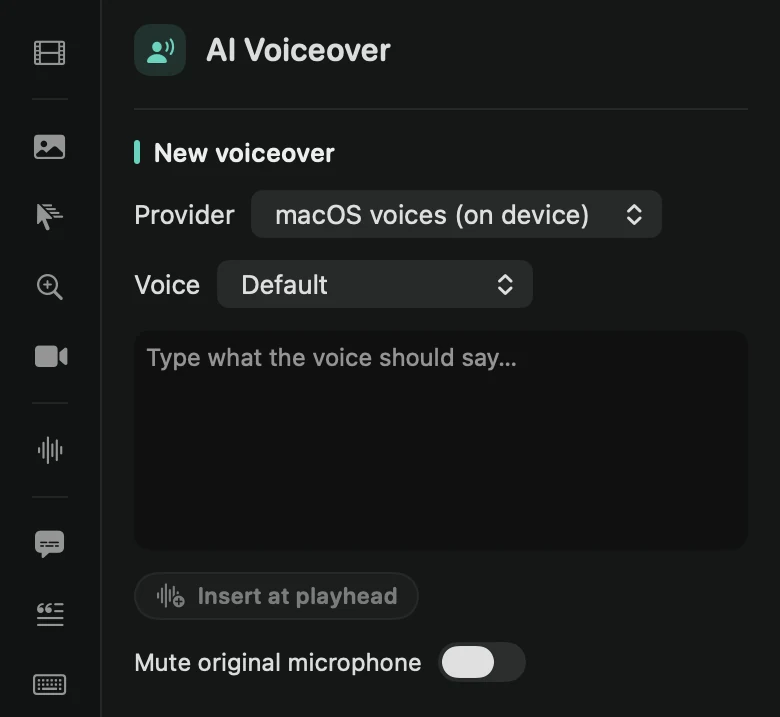
The voice appears on the Voice lane of the timeline. Add as many as you like, for example one per step. If the voiceover replaces what you said while recording, switch on Mute original microphone.
Choose a provider
- macOS voices (on device): free, works offline, and nothing leaves your Mac. Download more voices in System Settings › Accessibility › Spoken Content.
- OpenAI and ElevenLabs: cloud voices that need an API key from your own account with that service. Paste it into the key field. Framecast stores it in your Keychain and sends the service only your script.
You can also enter both keys in Settings › AI & Captions.
Change or move a voiceover
Each voiceover gets a card under Voiceovers. Edit its Script and click Regenerate to hear the new words in the same voice. You can also set its Volume, jump to it with ▶, or delete it with the trash icon.
To move a voiceover, drag its block along the Voice lane. Clicking a block opens its card. Blocks can’t be trimmed: to make one shorter, shorten its script.