GuideGetting started
Install Framecast
Download Framecast, drag it to Applications and open it. It runs on macOS 14 Sonoma or later and keeps itself up to date.
Download and install
- Go to framecast.pro/download and click Download Framecast.
- Open the downloaded file and drag Framecast to the Applications folder.
- Open Framecast from your Applications folder.
Framecast is free to download, and you can record and edit with every feature for as long as you like. To export your videos, you need a license. See Your license.
What you need
A Mac with macOS 14 Sonoma or later. Apple silicon is recommended for the fastest exports.
The first time you open it
The Welcome to Framecast window asks for the permissions Framecast needs. Only Screen Recording is required. Allow it, then click Continue. See Permissions.
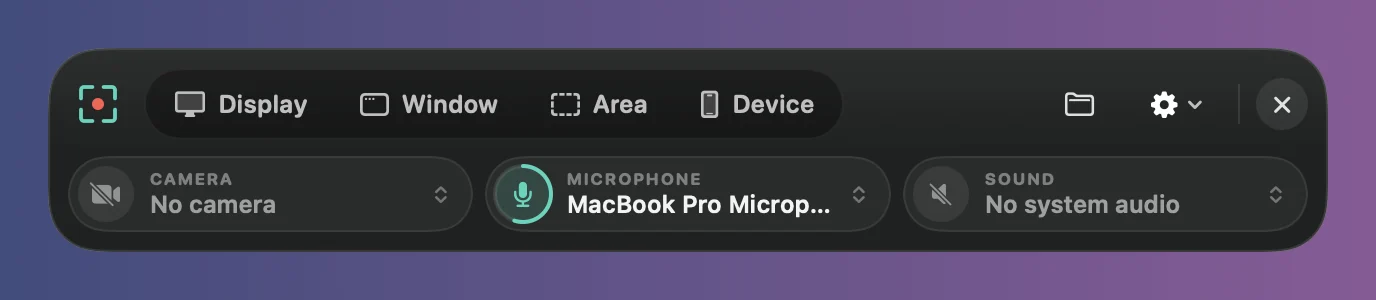
From then on, Framecast opens with the recording bar, and ⌥⌘↩ brings the bar up from any app. If you’d rather see your library when Framecast opens, turn off Show the recording bar when Framecast opens in Settings › General.
Updates
Framecast checks for new versions by itself and asks before it installs one. To look right away, choose Framecast › Check for Updates….
To install updates without the question, open Settings › General and, under Updates, turn on Download and install updates automatically. Updates then install when you quit Framecast. Turn on Get beta versions to try new features early.