GuideRecording
The recording bar
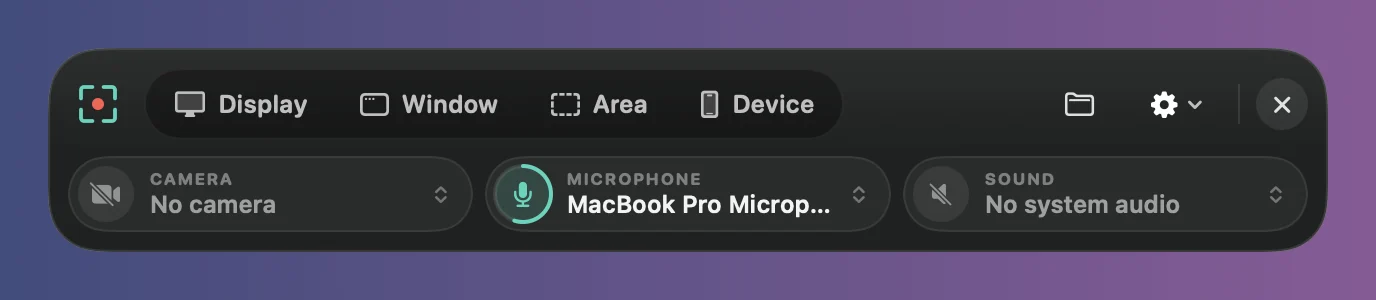
Every recording starts here. Pick what to record, your camera, microphone and sound, then press Record.
Open the recording bar
Press ⌥⌘↩ in any app. You can also choose File › New Recording, click New Recording in the library, click Framecast’s icon in the menu bar and choose New Recording, or right-click Framecast’s icon in the Dock and choose New Recording. The bar also appears when Framecast opens, unless you turn off Show the recording bar when Framecast opens in Settings › General.
Drag the bar to move it. Press esc or click ✕ to close it.
What’s on it
- Display, Window, Area and Device choose what to record. Press 1 to 4 to pick one from the keyboard. Right-click Display, Window or Device to choose from a list.
- The folder button shows your recent projects.
- The gear holds the recording options. See Recording options.
- The Camera, Microphone and Sound buttons on the second row choose what else is recorded. See Camera and microphone and System audio.
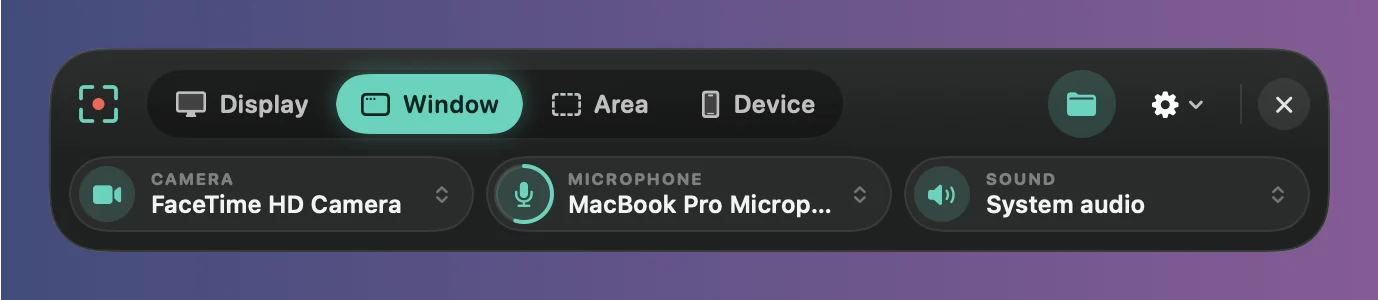
Once you’ve picked what to record, press ↩ or click Record.
Recent projects
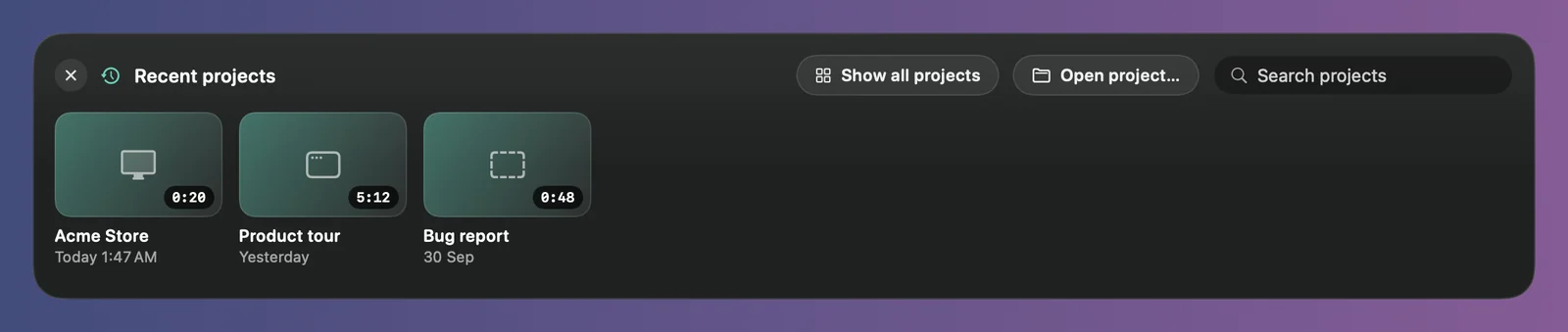
Click the folder button to show your latest projects above the bar, and click one to open it in the editor. Type in Search projects to find an older one; ↩ opens the first match. Show all projects opens the library, and Open project… opens a Framecast project from anywhere on your Mac.
If your pointer is enlarged
When the pointer is made bigger in System Settings, macOS draws it into the picture of your screen, so it would show in your video. A note at the top of the bar tells you: “Your pointer is enlarged in System Settings, so recordings will show a big cursor.” Click Open Settings to change the pointer size in System Settings › Accessibility › Display, or × to hide the note until Framecast opens again.