GuideRecording
Recording shortcuts
Start, pause and stop recordings from any app with keyboard shortcuts, and change them in Settings › Shortcuts.
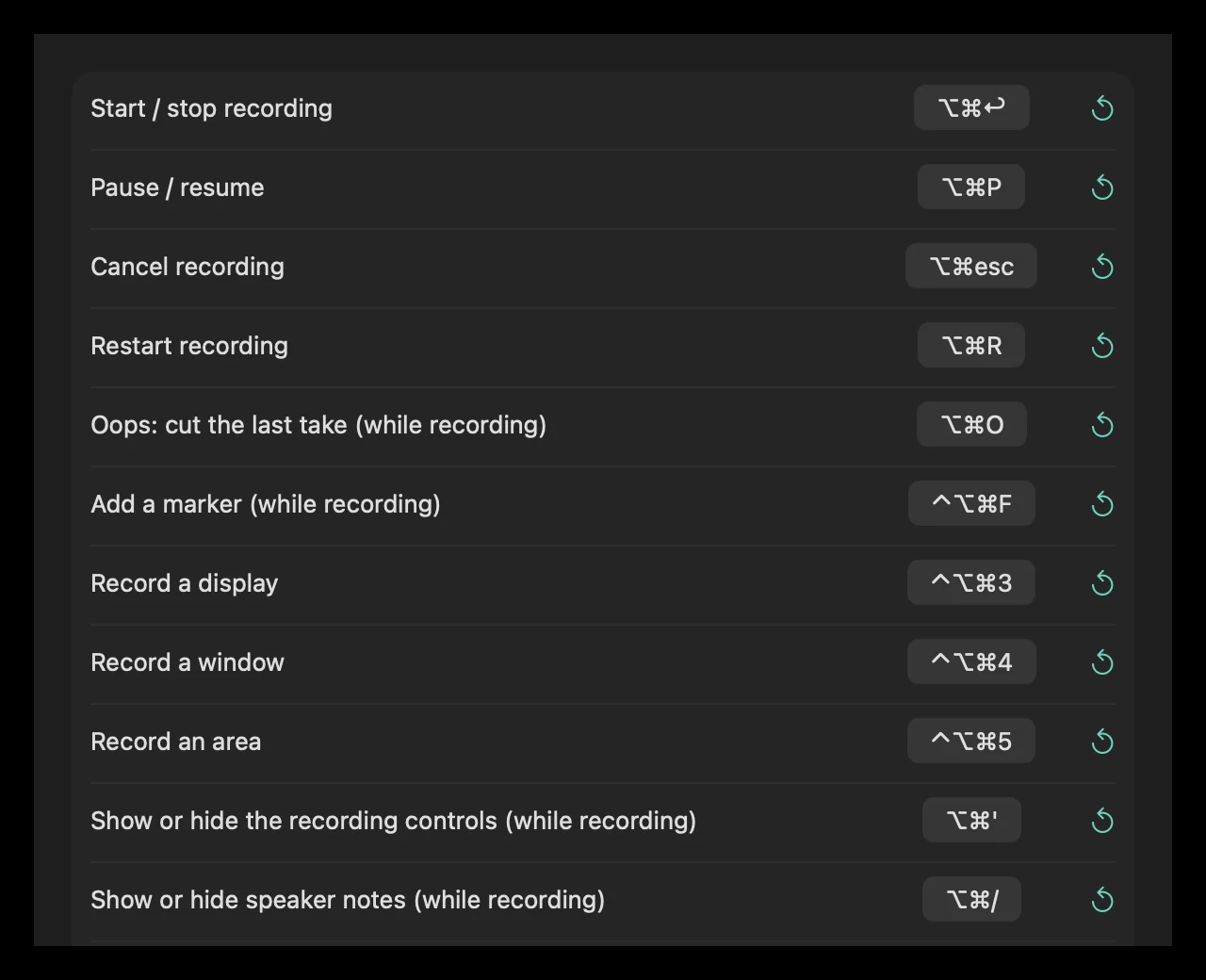
Shortcuts that work everywhere
These work in any app, even when Framecast is in the background.
| ⌥⌘↩ | Start / stop recording. Opens the recording bar; with the bar open, starts recording; during the countdown, cancels it; while recording, stops. |
| ⌥⌘P | Pause / resume |
| ⌥⌘esc | Cancel recording (asks first). Before you record, it closes the recording bar. |
| ⌥⌘R | Restart recording (asks first) |
| ⌃⌥⌘3 | Record a display: opens the bar in Display mode |
| ⌃⌥⌘4 | Record a window |
| ⌃⌥⌘5 | Record an area |
Shortcuts while recording
These only work during a recording, so they don’t take keys from other apps the rest of the time.
| ⌥⌘O | Oops: cut the last take. See Oops: cut a bad take. |
| ⌃⌥⌘F | Add a marker |
| ⌥⌘' | Show or hide the recording controls |
| ⌥⌘/ | Show or hide speaker notes |
| ⌥⌘. | Start or stop the teleprompter |
Change a shortcut
- Open Settings › Shortcuts.
- Click the shortcut you want to change. It reads Press keys….
- Press the new keys. They need at least one of ⌘, ⌥, ⌃ or ⇧. Press esc to cancel.
Click the ↺ button next to a shortcut to put back its default.
While the recording bar is open, 1 to 4 pick Display, Window, Area and Device, ↩ records and esc goes back. For the editor’s keys, see Editor keyboard shortcuts.