GuideGetting started
Permissions
Framecast needs the Screen Recording permission to record. Camera, Microphone and Accessibility are optional and turn on more features.
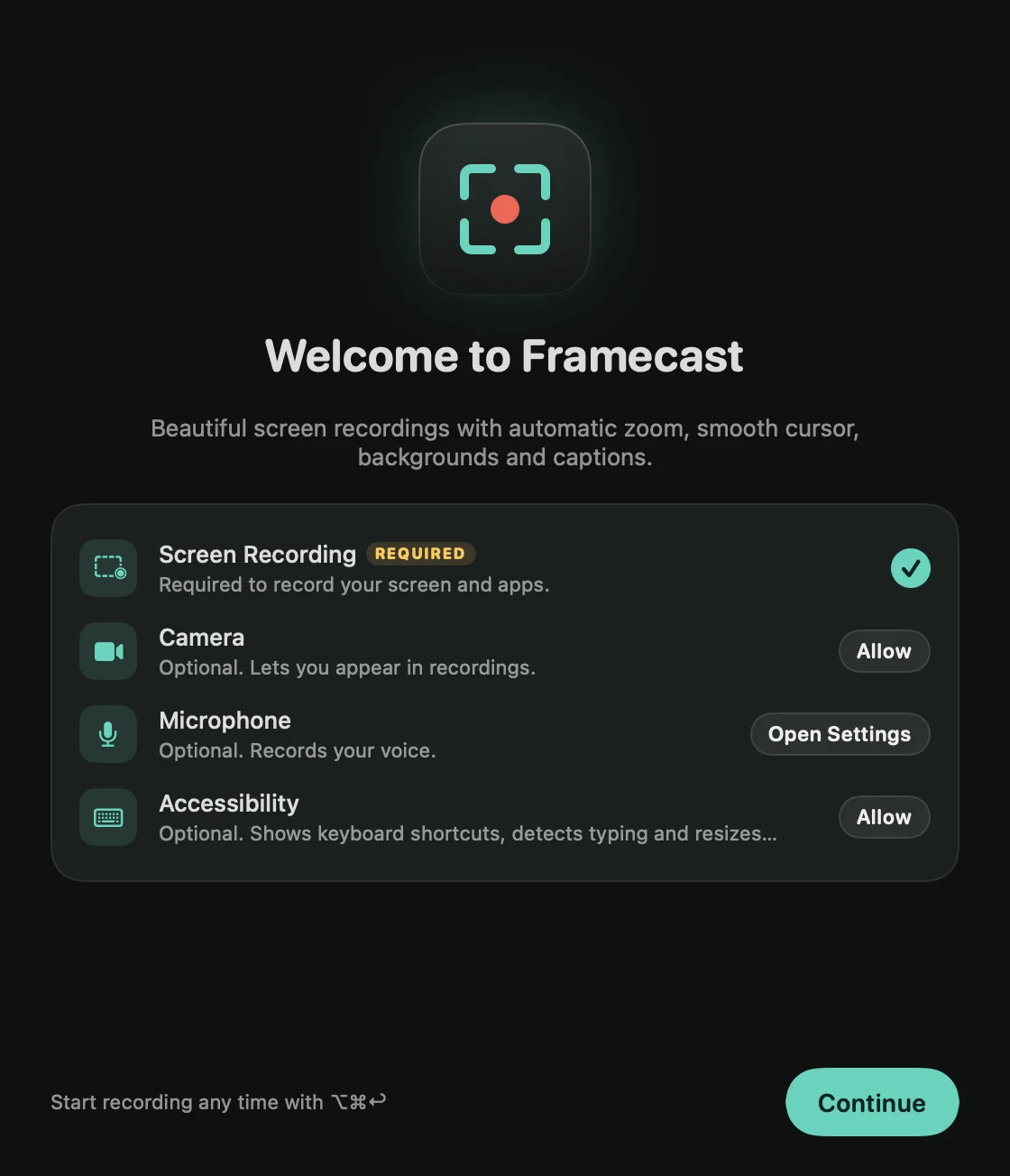
What each permission is for
The first time you open Framecast, the Welcome to Framecast window lists four permissions. Click Allow next to one and macOS asks you to confirm. A check mark means it’s on.
- Screen Recording (required): records your screen and apps. Framecast can’t record without it.
- Camera: lets you appear in your recordings.
- Microphone: records your voice.
- Accessibility: lets Framecast see the keys you press and what you click. It’s used for the keyboard shortcuts shown in your video, zooms that follow your typing and frame the button or menu you clicked, and resizing windows before you record.
After you allow Screen Recording, macOS may ask you to quit and reopen Framecast. Continue stays greyed out until Screen Recording is on. If you skip Camera now, Framecast asks again the first time you pick a camera on the recording bar.
Change them later
Open Settings › Recording. The Permissions section has the same list. If you turned one down before, its button reads Open Settings and takes you to the right place in System Settings.
You can also open System Settings › Privacy & Security and turn on Framecast under Screen Recording (Screen & System Audio Recording in newer versions of macOS), Camera, Microphone or Accessibility.
Note: if the library says “Framecast needs Screen Recording permission to record.”, click Set up permissions to bring back the list and allow it.