GuideExport & share
Title, chapters and subtitles
On the Publish tab, Apple Intelligence writes a title, summary and chapters for your video. Copy a ready-made description and export subtitles in 12 languages.
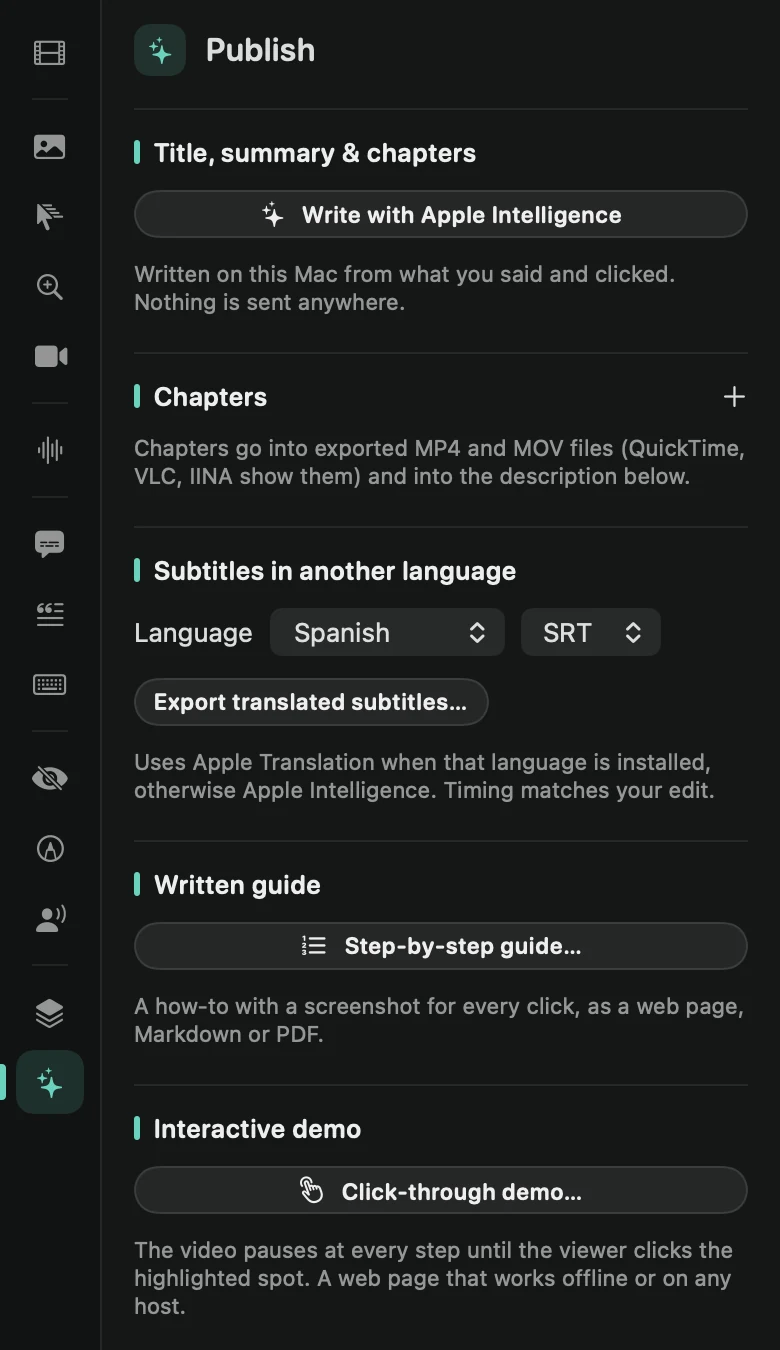
Write a title, summary and chapters
- Open the Publish tab in the inspector.
- Click Write with Apple Intelligence.
- Click Use next to the Suggested title to rename the video. Edit the Summary if you like.
Framecast writes them on your Mac from what you said and clicked, and nothing is sent anywhere. Click Write again for a new version. This needs macOS 26 or later, on a Mac with Apple Intelligence turned on in System Settings.
Chapters
To add a chapter yourself, move the playhead and click + next to Chapters, then type its name. Click a chapter’s time to jump there, or − to remove it. This works without Apple Intelligence.
Chapters go into exported MP4 and MOV files (QuickTime Player, VLC and IINA list them), onto share link pages, and into the description.
Copy the description
The Description section joins your summary and the chapters with their times. Click Copy and paste it into YouTube, where the times become chapters too.
Subtitles in another language
Choose a Language, from Spanish to Turkish, and SRT or VTT. Then click Export translated subtitles…. The timing matches your edit. Framecast uses Apple Translation when that language is installed on your Mac, and Apple Intelligence otherwise. You need a transcript first (see Transcript) and macOS 26 or later.
The last two buttons on the tab make a step-by-step guide and an interactive demo.