GuideLook & feel
Presets
Save your look as a preset and apply it to any video in one click. Make it the look of every new recording, or send it to your team.
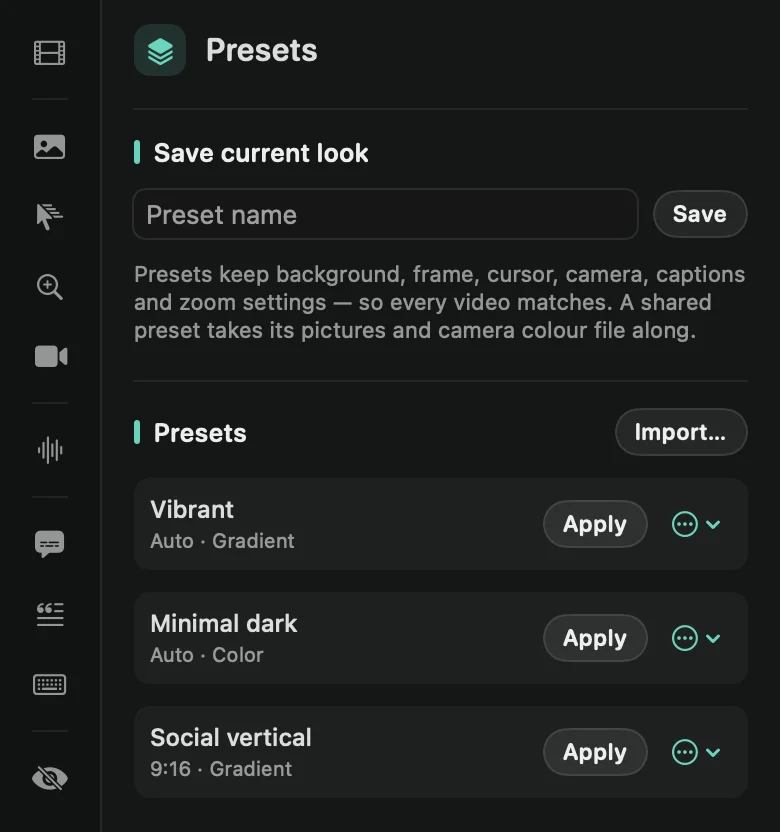
Save a look
- Set up a video the way you like it: background, frame, cursor, camera, captions and so on.
- Open the Presets tab in the inspector on the right.
- Type a Preset name and press Save.
Framecast comes with three presets to start from: Vibrant, Minimal dark and Social vertical.
What a preset keeps
A preset keeps how a video looks: the aspect ratio, background, frame and shadow, cursor and click effects, motion blur, all the camera settings, the caption style (and whether captions show), the keyboard shortcut labels, your zoom defaults, voice enhancement, the device frame and your logo.
It leaves out what belongs to one recording: your zooms, cuts, crop, masks, annotations, music and volumes, and the parts where you hid the cursor or a shortcut label.
Apply, update and share
- Apply gives the open video that look. ⌘Z undoes it.
- In the ⋯ menu, Use for new recordings applies the preset to every new recording and marks it DEFAULT. Remove as default turns that off.
- Update with current look replaces the preset with the open video’s look.
- Share / export… saves the preset as a file you can send to someone. The file carries the pictures the look uses, such as a background image or photo, your logo and the picture behind you, and the camera’s color file. The look is the same on their Mac. If a file can’t go along, Framecast tells you which.
- Delete removes it.
To add a preset someone sent you, press Import… next to the Presets heading and pick one or more .framecastpreset files. Opening the file from Finder imports it too. The pictures and color file it carries come along.
Tip: you can apply a preset from the command menu: press ⌘K and type its name.