GuideEditing
Command menu
Press ⌘K and type to find any editing command, from Split to Find and blur private info.
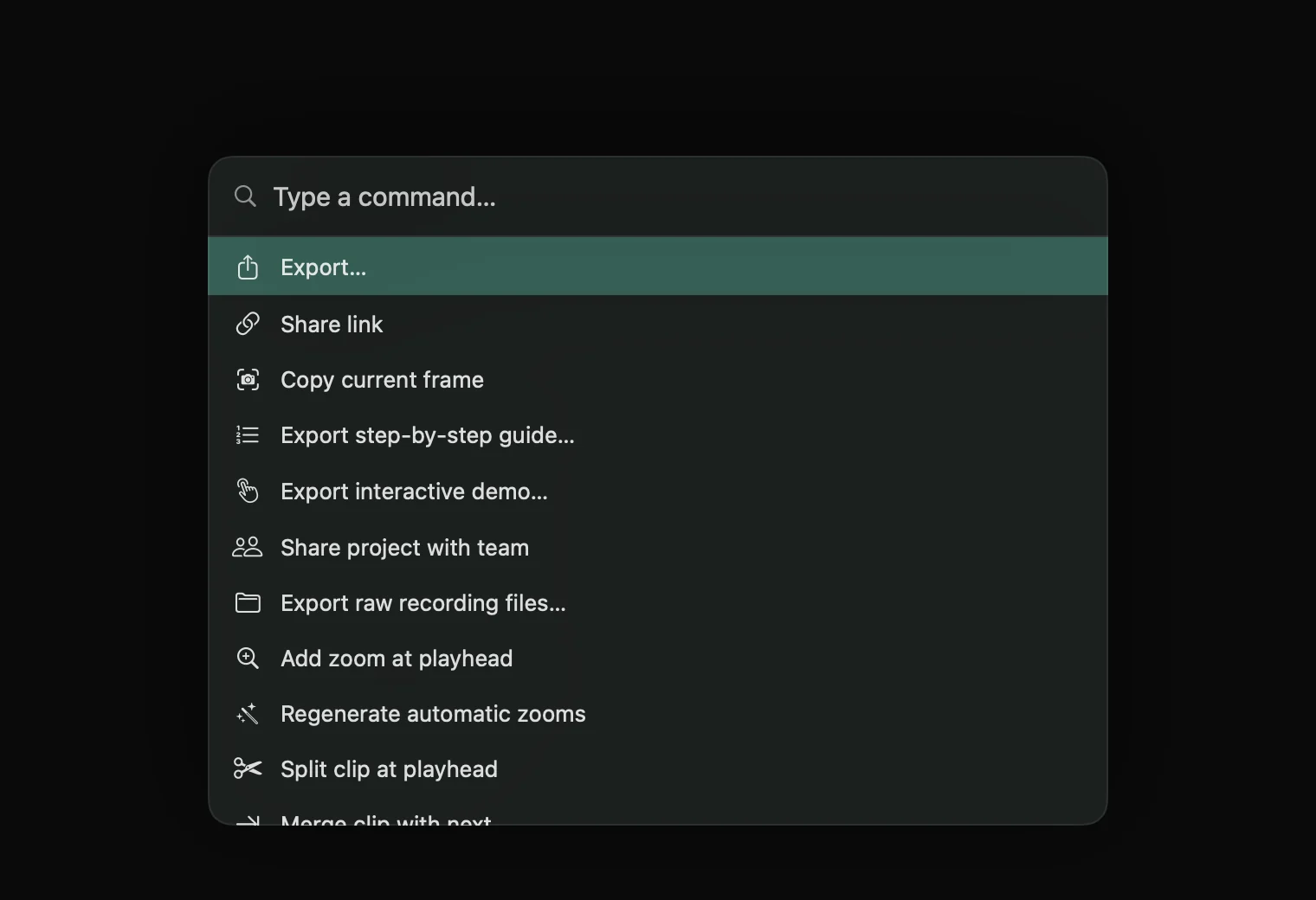
Run a command
- Press ⌘K in the editor, or click the ⌘ button in the toolbar.
- Type a few letters, such as “split” or “vertical”.
- Use ↑ and ↓ to pick a command and press Return, or click it.
Press Esc or click outside to close the menu. The search also knows related words: “tiktok” finds Toggle social overlay, and “redact” finds Find and blur private info.
What’s in it
Almost everything you can do in the editor:
- Export and share: Export…, Share link, Copy current frame, and the step-by-step guide and interactive demo.
- Zooms: Add zoom at playhead, Regenerate automatic zooms, Remove zoom.
- Clips: split, merge, trim, duplicate and mute, the three tools, and marking a range.
- Speed: Set speed to 0.25× up to 16×, Speed up typing, Speed up waiting.
- Shape: Aspect ratio: Auto up to Vertical 9:16, Keep zoomed in, Crop recording.
- Clean-up: Remove filler words, Tighten pauses, Find and blur private info.
- Looks: Apply preset for each of your presets, and Open … settings to jump to any inspector tab.
Commands act on what’s selected, or on the clip or zoom under the playhead.
Tip: anything you run from the menu can be undone with ⌘Z.