GuideAnnotations & privacy
Number the clicks
Put a numbered badge on every control you click, in order, so viewers can follow each step.
Number every click
- Open the Annotations tab.
- Under Number the steps, click Number the Clicks.
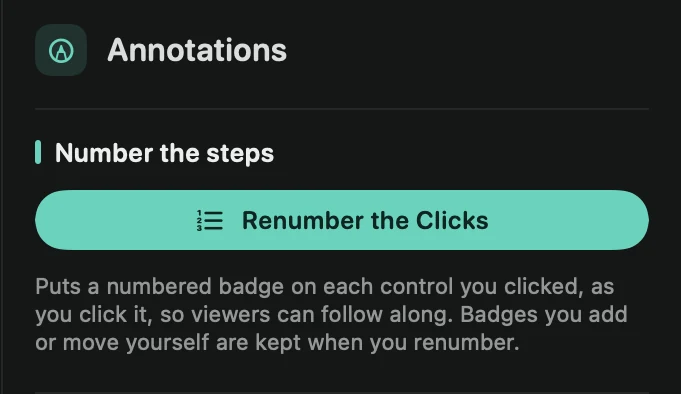
A message tells you how many clicks were numbered. Press ⌘Z to undo. Number the Clicks is also on the + menu of the Notes lane and in + Add › Annotation.
How the badges behave
Each badge pops in a moment before its click, a little above and to the left of where the click lands, so the pointer never covers the number. It goes away when the next step starts, when the control you clicked goes away (a menu closing or a dialog being dismissed), or after about two seconds.
Only clicks in the part of the video you kept are numbered, and a double-click counts as one step.
Change or renumber
Each badge is an ordinary annotation. Click it to change its Number, add a Label, or set its Color and Size. Drag it on the preview to move it. See Annotations.
After you cut or move parts of the video, click Renumber the Clicks. The numbered badges are made again, and badges you added or moved yourself are kept.
Tip: the badges sit on the control you clicked when Framecast had the Accessibility permission while you recorded. Without it, they sit next to where you clicked. See Permissions.