GuideZooms
AI upscaling
Keeps small text sharp in deep zooms by redrawing the zoomed-in part with Apple’s upscaler, on your Mac.
What it does
When a zoom shows the screen larger than it was recorded, the picture is stretched and small text turns soft. With AI upscaling on, Apple’s on-device upscaler redraws that part at 4×, so small text stays crisp. It runs on your Mac.
Turn it on or off
- Click Export in the toolbar, or press ⌘E.
- Switch AI upscaling for zooms on or off.
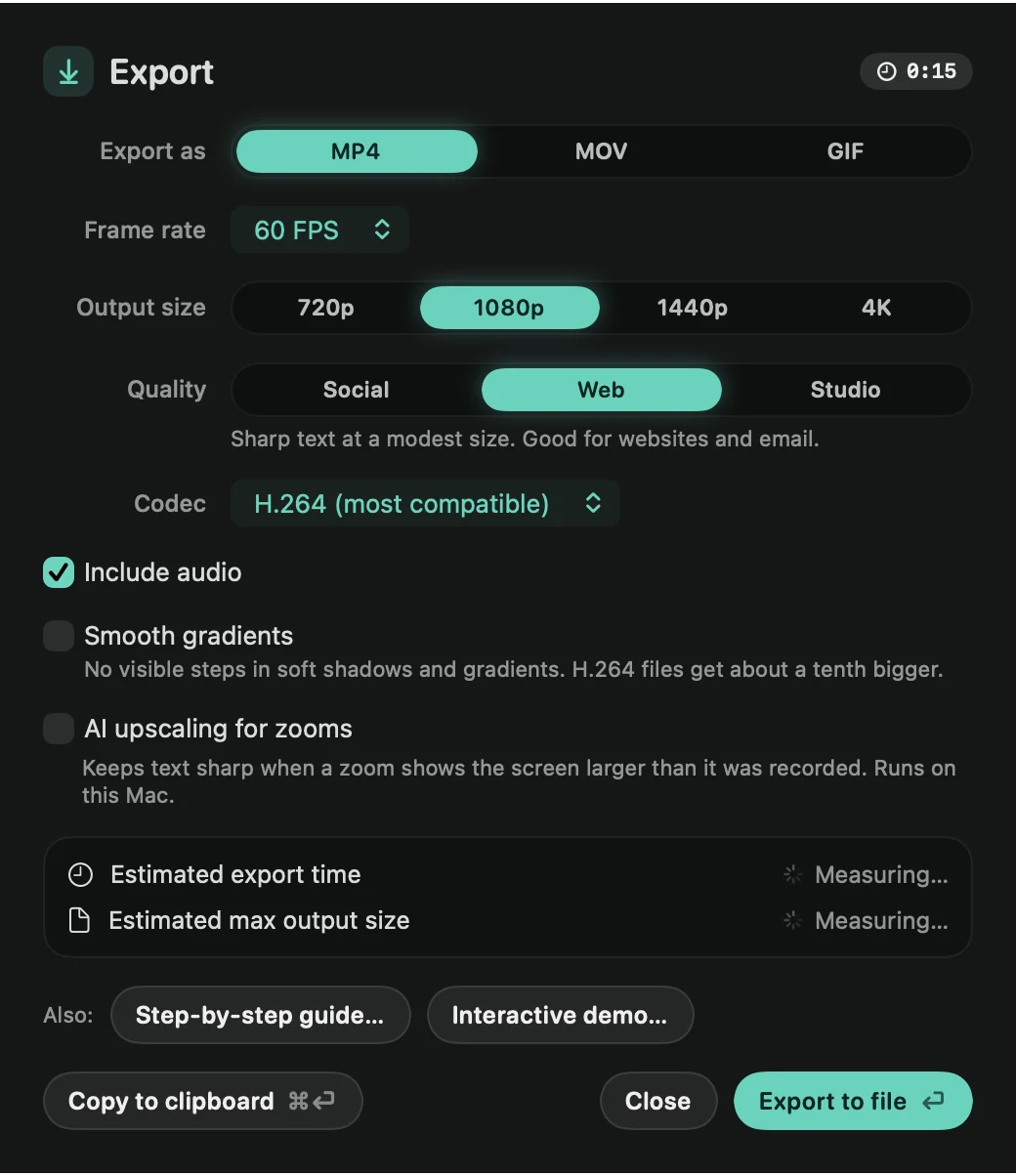
The setting is saved with each video, and new recordings have it on. Settings › AI & Captions shows whether upscaling is ready on this Mac, but you switch it on or off in the Export window.
What you need
- macOS 26 or later: on older versions, and on a Mac that can’t run Apple’s upscaler, the line under the switch says it’s not available. Zooms then use the standard sharpening.
- Apple’s upscaling model: a one-time download. Click Download under the switch, or in Settings. If the download doesn’t finish, click Try again.
In the editor
Upscaling takes longer than playback allows, so the preview plays with the standard scaling. When you pause, Framecast redraws the paused frame upscaled after a moment. Exports and copied frames are always upscaled while the setting is on.