GuideExport & share
Private links
Share a video with only the people you name. Each person gets a personal link, you see who watched, and you can turn any link off.
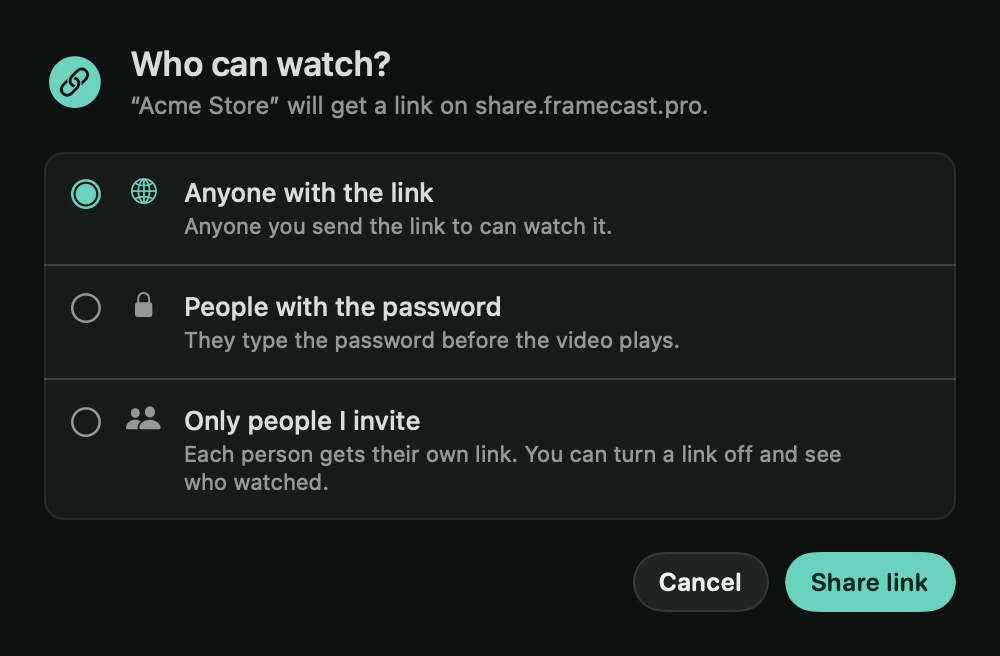
Invite people
- Share a link as usual, for example with Share link in the editor. See Share a link.
- In Who can watch?, choose Only people I invite.
- Type names or emails, separated by commas.
- Click the share button. It counts the people, for example Share with 3 people.
Framecast makes a personal link for each person and opens the list of people. Send everyone their own link: Copy link next to a name, or Copy all links for every name with its link.
Anyone else who opens the video sees “This video is private”. Link previews in chat apps don’t show its title or picture.
The other two choices are Anyone with the link, and People with the password, where viewers type a password before the video plays.
Manage who can watch
Open the list again any time: right-click the recording in the library and choose Manage who can watch…, or press ⌘K in the editor and choose it there.
- See who watched: each name shows when that person last watched and how many times, or “Hasn’t watched yet”. Click ↻ to check again.
- Turn a link off: click ⓧ next to a name. From then on that person sees “This link was turned off”. Everyone else keeps watching. To let them back in, invite them again.
- Invite more people: type names in the Invite more box and click Invite.
Tip: to start every share on Only people I invite, set Who can watch in Settings › Sharing.