GuideLook & feel
Click effects
Show every click with a circle, a ripple or an outline around what you clicked, and add a soft click sound.
Choose a click effect
- Open the Cursor tab in the inspector on the right.
- Under Clicks, pick a Click effect.
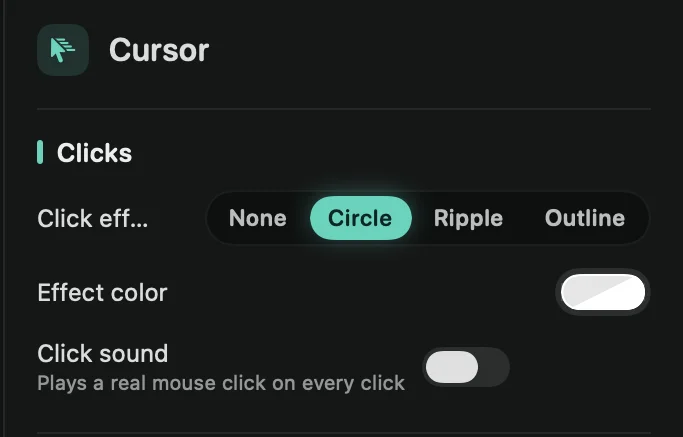
- None: no effect.
- Circle: a soft circle pops under the cursor and fades. New projects start with this one.
- Ripple: a ring spreads out from the click.
- Outline: outlines the button, field or menu item you clicked. Clicks on controls Framecast doesn’t know get a circle.
Effect color sets the color of the effect. Pick one that stands out against the app you recorded.
Outline works from what Framecast noted about each click while you recorded, which needs the Accessibility permission. See Permissions.
Add click sounds
Switch on Click sound to hear a real mouse click on every click, then set Click volume. Use it when your viewers should hear the clicks, for example in a video with no voice.
Under Sound, pick the mouse: Crisp (light and bright), Classic (a fuller office mouse) or Clicky (a firmer snap). Each click plays the press when the button goes down and the release when it comes back up, so a drag sounds like one.
The same settings are on the Audio tab, under Mouse click sounds.