GuideCamera & device
Camera cutout
Framecast removes the background behind you and stands you in front of your recording, like a presenter in front of a big screen. No green screen needed.
Use the cutout
Framecast finds you in the camera picture and removes everything behind you. It does this on your Mac, after recording, so you don’t need a green screen.
- Open the Camera tab in the inspector on the right.
- Under Layout, pick Camera cutout.
You now stand at the bottom of the video, in front of the recording. To use the cutout for only part of the video, add a Camera cutout block on the Layout lane instead. See Camera layouts.
Adjust it
Once the cutout is in use, a Camera cutout section appears on the Camera tab.
- Size sets how tall you appear, from 30% to 85% of the video’s height.
- Position under Camera bubble picks the side you stand on.
- Shadow and Zoom under Camera bubble work here too.
- Smaller while zoomed in makes you smaller while a zoom is on screen.
Captions at the bottom move up, so they don’t cover you.
Keep the edge clean
The Cutout edge section below it shapes your outline:
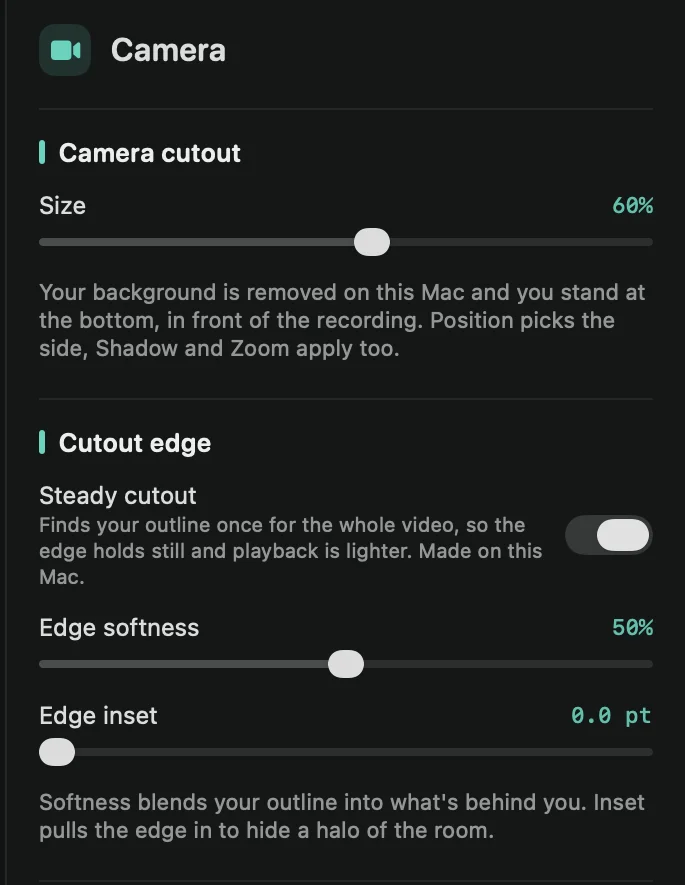
- Steady cutout: Framecast finds your outline once for the whole video, so the edge holds still and playback is lighter. It works on your Mac, and the toolbar shows “Preparing the steady cutout…” while it does. Until it’s ready, Framecast finds your outline frame by frame. New recordings have it on.
- Edge softness: blends your outline into what’s behind you.
- Edge inset: pulls the edge in, to hide a thin halo of your room around you.
Cut out the bubble only
To keep the normal camera bubble but remove the background inside it, pick Remove under Behind you on the Camera tab. Cutout edge works there too. You can also blur the room or put a picture behind you there. See Blur or change your background.