GuideAudio
Voice enhancement
Framecast cleans up your microphone on your Mac: less noise, an even volume and a clearer voice. Your original recording is never changed.
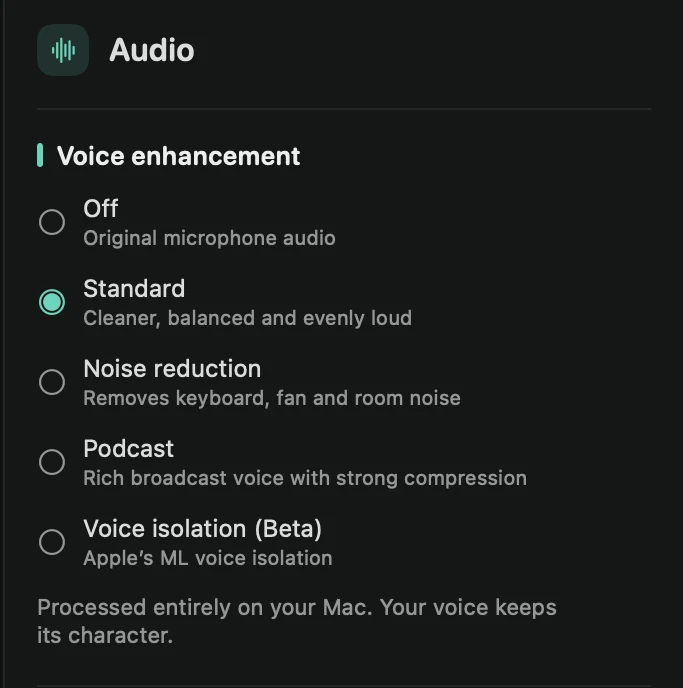
Pick a mode
Open the Audio tab in the inspector and click a mode under Voice enhancement. Framecast prepares the new sound in the background; the toolbar shows “Enhancing voice…” while it works. New recordings start on Standard.
- Off: your microphone exactly as it was recorded.
- Standard: removes low rumble, adds a little clarity and evens out your volume, so quiet and loud parts sit at the same level.
- Noise reduction: takes out keyboard, fan and room noise, then does everything Standard does. The pauses between sentences get quieter too.
- Podcast: a warmer, fuller broadcast voice with strong compression. It removes noise and softens sharp “s” sounds.
- Voice isolation (Beta): Apple’s machine-learning voice isolation. It keeps your voice and drops the rest of the sound. If your Mac can’t run it, Framecast uses Noise reduction instead.
Every mode except Off sets your voice to the same loudness, so your videos sound alike from one to the next. It all runs on your Mac.
To also silence the microphone between sentences, switch on Mute when not talking. See Volume and muting.
Start every recording with noise reduction
On the recording bar, click the microphone and tick Reduce noise and normalize volume. New recordings then open on Noise reduction instead of Standard. The option only picks where you start: you can change the mode in the editor like any other.
Your recording stays untouched
Voice enhancement never changes the original microphone recording. Framecast keeps a cleaned-up copy next to it and plays that instead. Choose Off at any time to hear the original again, and Export raw recording files always gives you the original.
Tip: to balance your voice against system audio or music, use the Volume sliders on the same tab. See Volume.