GuideRecording
System audio
Record the sound playing on your Mac, from every app or only the apps you choose. Your microphone is recorded separately.
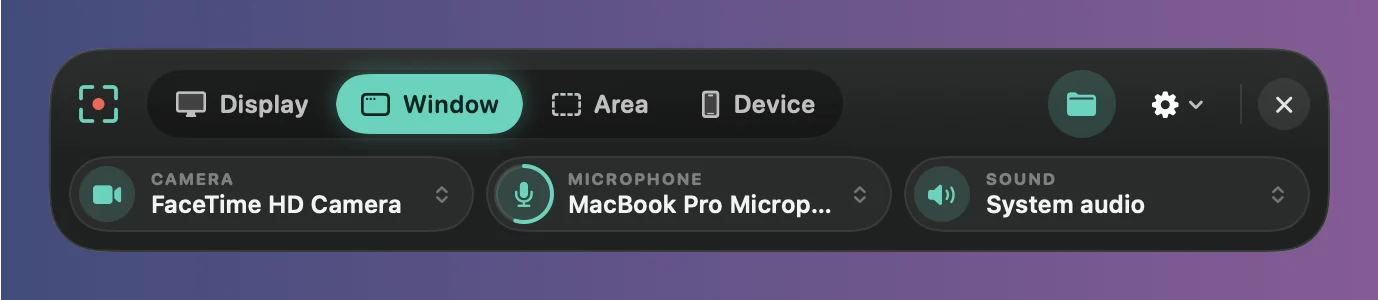
Turn it on
System audio is the sound your Mac plays: a video in your browser, an app’s alerts, music. It’s off until you turn it on. Click the Sound button on the recording bar and choose:
- Record system audio from all apps. The button reads System audio.
- Record system audio from selected apps, then tick the apps you want under Apps. Sounds from other apps are left out, and nothing is recorded until you tick one. The button reads, for example, Sound from 2 apps.
- Don’t record system audio. The button reads No system audio.
An app you ticked that isn’t open shows “Not open: recorded once it starts”. Sounds Framecast makes itself are never recorded.
Make it the default
To keep system audio on for new recordings, turn on Record system audio by default in Settings › Recording. It’s the same switch as the Sound button, so changing one changes the other.
In the editor
System audio is kept apart from your microphone. In the Audio tab, System audio has its own Volume and Mute, so you can turn an app’s sound down under your voice.
Note: iPhone and iPad recordings include the device’s sound without this setting. See Record an iPhone or iPad.