GuideRecording
While you record
The recording controls let you pause, restart, mark a mistake, drop a marker or stop. They sit in the corner of the screen and never appear in the video.
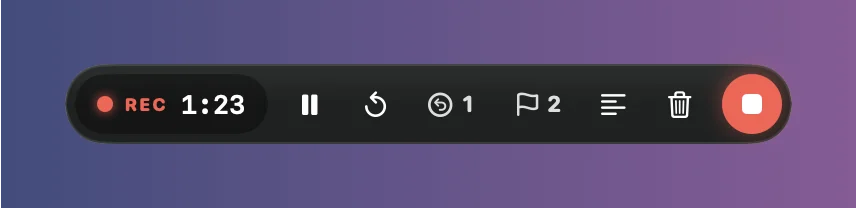
The recording controls
When the countdown ends, you hear a soft sound and a small bar appears at the bottom center of the screen you’re recording. From left to right:
- REC and the time recorded so far.
- Pause (⌥⌘P): nothing is recorded until you resume.
- Restart (⌥⌘R): throws away what you have and starts again.
- Oops (⌥⌘O): marks a take that went wrong, so it’s cut. See Oops: cut a bad take.
- Marker (⌃⌥⌘F): puts a flag on the timeline at this moment, so you can find it when you edit.
- Speaker notes: shows or hides your notes. See Speaker notes and teleprompter.
- Camera reactions: balloons, hearts, confetti and more on your camera video, when your camera supports them.
- Cancel and delete (⌥⌘esc).
- Stop (⌥⌘↩): the red button.
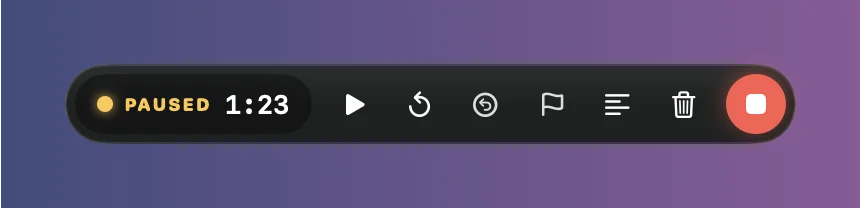
Restart and Cancel ask first, and the recording pauses while you decide. Choose Restart or Delete recording, or Keep recording to carry on. ↩ and esc both keep recording.
The sound when recording starts and stops is only for you: it isn’t in the recording. To turn it off, untick Play a sound when recording starts and stops in Settings › Recording.
Hide the controls
Press ⌥⌘' to hide or show them while you record. To start without them, untick Show recording controls in the gear menu on the recording bar. The shortcuts still work, and Framecast’s menu bar icon turns red, shows the time and offers Stop Recording, Pause, Restart and Cancel Recording.
Dimming
When you record a window or an area, the rest of the screen is dimmed so you can see what’s in the shot. The dimming is only on your screen, never in the video. To turn it off, untick Dim around what you record in the gear menu. An area then gets a red dashed outline instead.
When your disk is almost full
Framecast keeps an eye on the free space on your disk while you record. Below 3 GB, a warning appears above the recording controls, which come back if you hid them: “Your disk is almost full”, with how much space is left. Click × to hide it.
Below 1 GB, Framecast stops the recording and saves it, then shows “Recording stopped: your disk is almost full”. Click Manage Storage… to see what takes up space. A new recording doesn’t start while less than 1 GB is free.