GuideRecording
Record an area
Draw a box around the part of the screen you want. Type an exact size, keep a shape like 16:9, and save sizes you use often.
Draw the area
- On the recording bar, click Area or press 3. From any app, ⌃⌥⌘5 opens the bar in Area mode.
- Drag across the screen to draw the area. Everything outside it is dimmed.
- Drag inside the area to move it, or drag one of its eight handles to resize it.
- Press ↩ or click Record in the panel next to the area.
The area needs to be at least 150 × 150. Press esc to go back. Until you quit, Framecast keeps your last area ready for the next recording.
Exact sizes
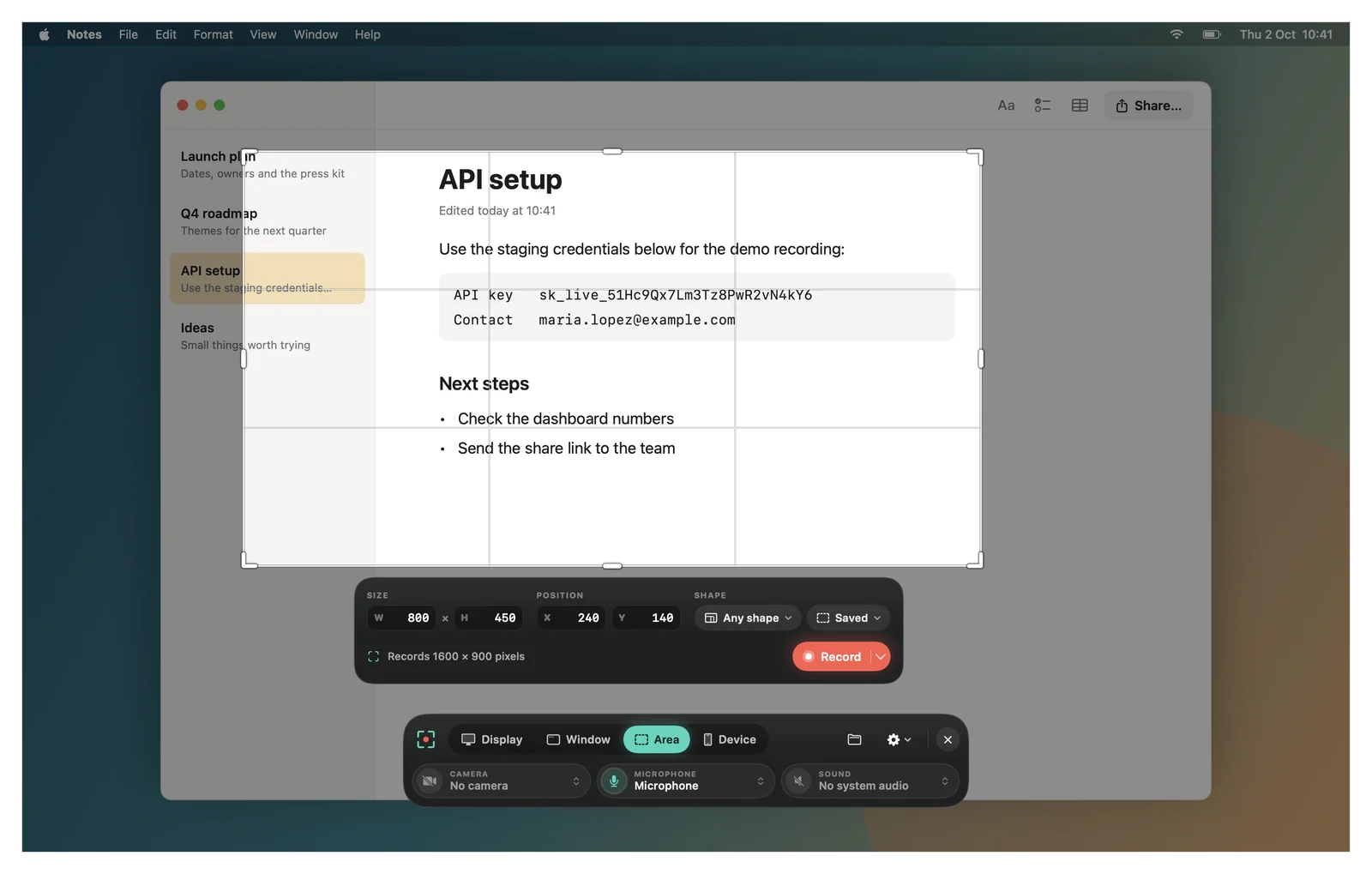
- Size and Position: type a width and height, or how far the area is from the top-left corner of the display. These are in points; the line below shows the pixels you’ll get, such as “Records 1600 × 900 pixels”.
- Shape: click Any shape to keep a shape while you resize: 16:9, 4:3, 1:1, 3:4 or 9:16. Choose Custom to type your own, like 21 : 9.
- Saved: choose Save current size to keep this size, then pick it from the same menu next time. Delete saved sizes removes the ones you don’t need.
Nudge it with the keyboard
| ← → ↑ ↓ | Move the area 1 point. Hold ⇧ to move 10. |
| ⌘← ⌘→ | Make it narrower or wider, from the right edge. Add ⇧ for 10 points. |
| ⌘↑ ⌘↓ | Make it shorter or taller, from the bottom edge. Add ⇧ for 10 points. |
Tip: to record part of a window, start in Window mode, point at the window and click Adjust recording area. The area starts out the size of the window. See Record a window.