GuideEditing
Title slides
Add an intro, an outro or a title card in between, set on your background, with a smooth transition.
Add a slide
- Press Esc so nothing is selected, and open the Clip tab.
- Under Titles and transitions, click Intro, At Playhead or Outro.
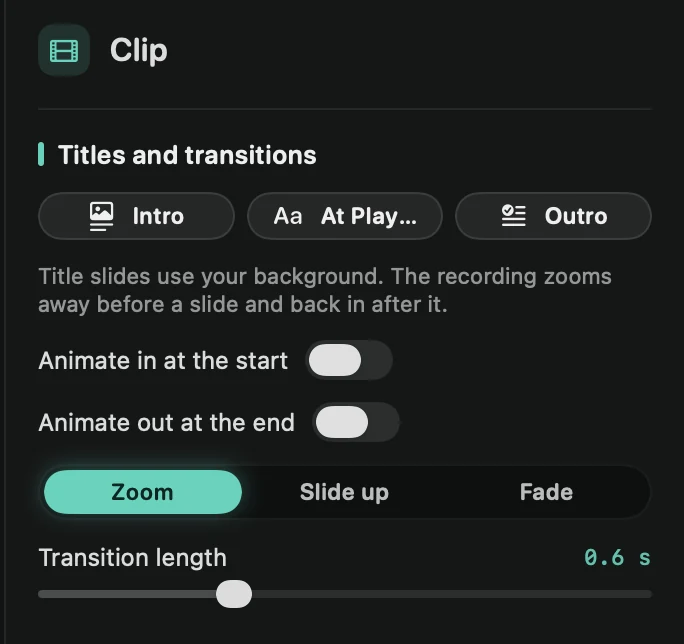
- Intro: at the start, with the project’s title.
- At Playhead: splits the clip at the playhead and puts a 2.5-second slide there.
- Outro: at the end, saying “Thanks for watching”.
The same choices are in + Add › Title Slide above the timeline.
Edit a slide
Click the slide on the timeline. The Clip tab shows Title, Subtitle (optional), Alignment (Centered or Left), Text size and Duration, from 0.5 to 30 seconds. Automatic text color picks light or dark text to suit your background; switch it off to choose a Text color.
Drag the slide on the timeline to move it, or drag its edges to make it longer. Press ⌫ to delete it.
Transitions
The recording goes out before a slide and comes back in after it. Pick the style, Zoom, Slide up or Fade, and the Transition length, from 0.2 to 1.5 seconds.
Without slides, switch on Animate in at the start or Animate out at the end to give the video the same transition at its ends.