GuideAnnotations & privacy
Masks
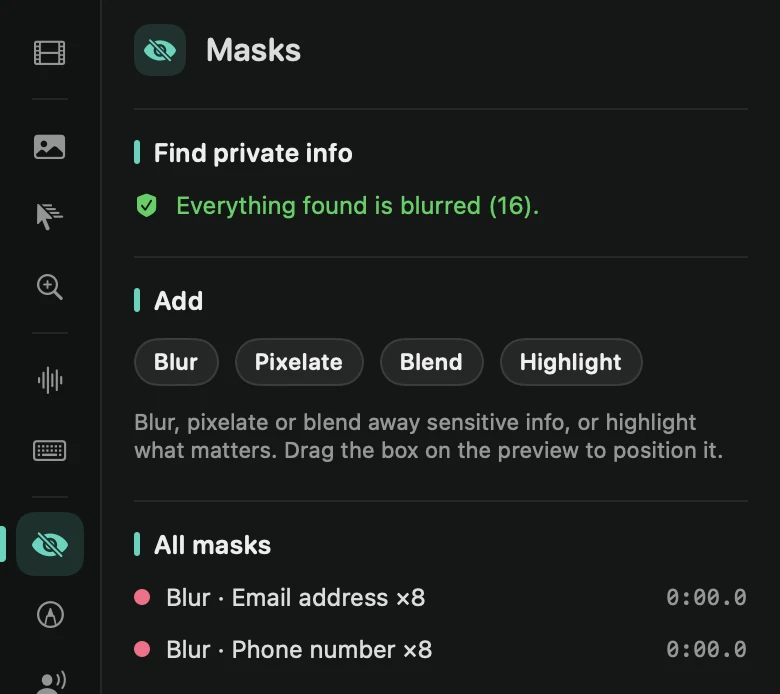
Blur, pixelate or blend away something on screen, or highlight one area by dimming everything around it.
Four kinds of mask
- Blur: blurs the area.
- Pixelate: turns the area into large blocks.
- Blend: fills the area with the colors around it.
- Highlight: dims everything else, so the area stands out.
Add a mask
- Move the playhead to where the mask should start.
- Open the Masks tab and, under Add, click Blur, Pixelate, Blend or Highlight.
- On the preview, drag the box over what you want to cover, and drag its corner handle to resize it.
A new mask lasts three seconds. On the Mask lane of the timeline, drag its block to move it, or drag its edges to show it for longer.
The + on the Mask lane adds a Blur mask at the playhead. Or move the pointer over an empty part of the lane: an outline shows where a click adds a Blur mask, and you can drag along the lane to choose how long it lasts.
Adjust it
Select a mask to change its Type, its Intensity (called Dim amount for a highlight) and its Corner radius. Masks are pinned to the recording, so they stay over the same spot while the camera zooms. To delete one, press ⌫, or right-click its block and choose Remove.
To cover the same spot again later, select the mask and press ⌘C, press Esc, move the playhead and press ⌘V. To give another mask the same type, intensity, corner radius and place, select it and press ⌘V instead.
Masks that follow text
Masks made by Find private info follow the text they cover when it scrolls or moves. On the preview their label reads, for example, “Blur · follows Email address”. They move by themselves, so you can’t drag them, but you can still change their type, intensity and timing.