GuideLook & feel
Your logo
Add your logo once and Framecast puts it in a corner of every frame. It moves out of your camera’s way on its own.
Add your logo
- Open the Background tab in the inspector on the right.
- Scroll to Logo and click the box, then pick your logo. You can also drop a file on the box, or copy a picture and press ⌘V while the pointer is over it.
- Pick a corner: Top left, Top right, Bottom left or Bottom right.
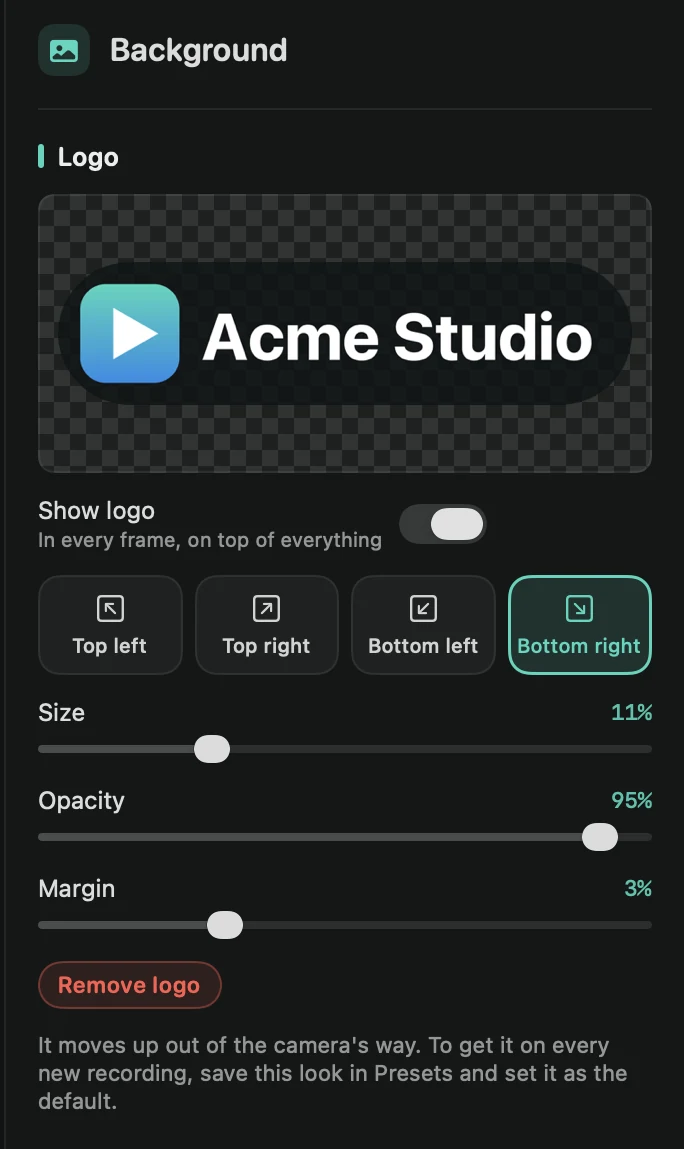
Framecast keeps a copy of the picture inside the project, so the logo stays even if you move or delete the original file. A PNG with a see-through background looks best.
Adjust it
- Size sets how big it is. A wide logo and a square one at the same size look about as heavy.
- Opacity makes it more see-through, for a quieter watermark.
- Margin sets the space between the logo and the edges of the video.
- Show logo hides it without removing it. Remove logo takes it out.
How it behaves
- It sits on top of everything and stays still while the recording zooms, pans or tilts.
- When your camera bubble, or you in the camera cutout, would cover it, the logo moves up out of the way, and back down once the camera has gone.
- The speed badge in the top right moves below a logo in that corner.
- It’s in every export: videos, GIFs, share links and copied frames.
Put it on every recording
Save your look as a preset, then choose Use for new recordings in the preset’s ⋯ menu. Every new recording then starts with your logo. See Presets.