GuideRecording
Speaker notes and teleprompter
Keep your script on screen while you record. Only you see it, it’s never in the video, and the teleprompter scrolls it for you.
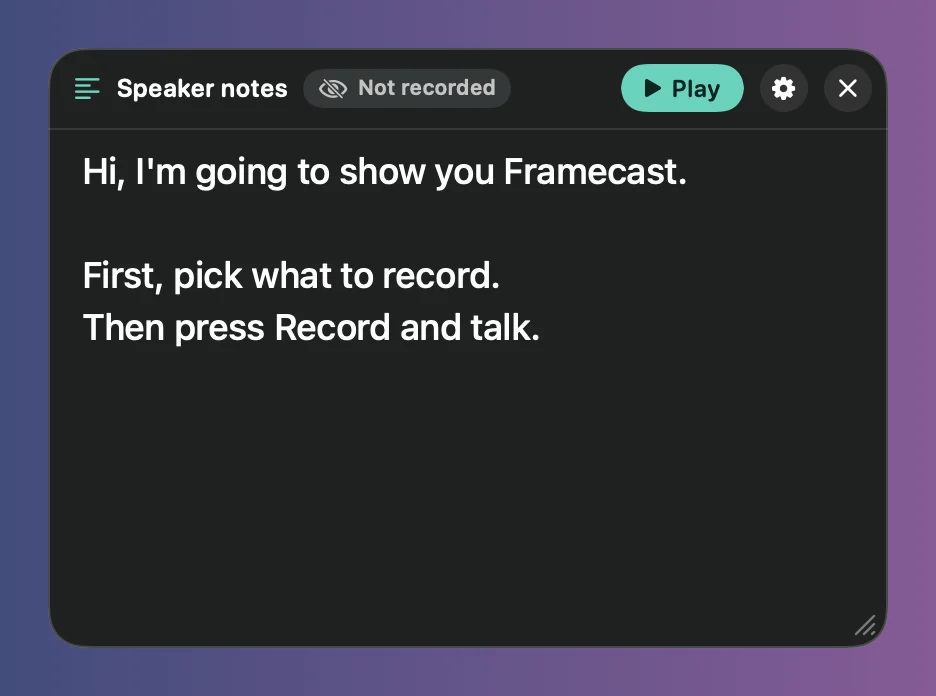
Write your notes
- On the recording bar, click the gear and choose Edit notes….
- Type or paste your script.
- In the same gear menu, turn on Show notes while recording.
When the recording starts, your notes appear near the top of the screen you’re recording. Drag them anywhere and drag the corner to resize them; Framecast keeps them there until you quit. The Not recorded badge is a reminder that the notes never show up in the video.
While recording, press ⌥⌘/ or click the notes button on the recording controls to show or hide them.
Teleprompter
Click Play in the notes, or press ⌥⌘., and the text scrolls up at a steady pace.
- Click or scroll the text to pause it. Space plays or pauses, and ↑ and ↓ move one line.
- Pausing the recording pauses the teleprompter too. Restarting the recording starts your notes from the top.
- To change the text, click the pencil button.
Text size, opacity and speed
Click the gear in the notes:
- Text size: 12 to 40 pt.
- Opacity: 30 to 100%. Only the background fades and the text stays solid, so you can see what’s behind your notes.
- Teleprompter speed: 5 to 60 lines a minute. Framecast shows about how many words a minute that is at your text size.