GuideCamera & device
Blur or change your background
Blur the room behind you in the camera, or put a picture behind you. Framecast finds you on your Mac, so there’s no green screen and nothing is uploaded.
Choose what’s behind you
- Open the Camera tab in the inspector on the right.
- Under Behind you, pick Original, Blur, Image or Remove.
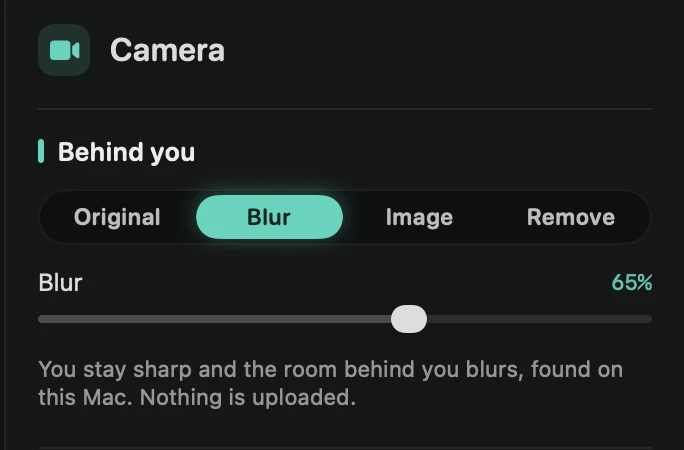
- Original shows the room as your camera filmed it.
- Blur keeps you sharp and blurs the room. Move the Blur slider to make it softer or clearer.
- Image puts you in front of a picture.
- Remove shows only you, with no background in the bubble.
Use a picture
With Image picked, click one of your Mac’s wallpapers, or add your own picture: click the box, drop a file on it, or copy a picture and press ⌘V while the pointer is over it. Framecast keeps a copy inside the project.
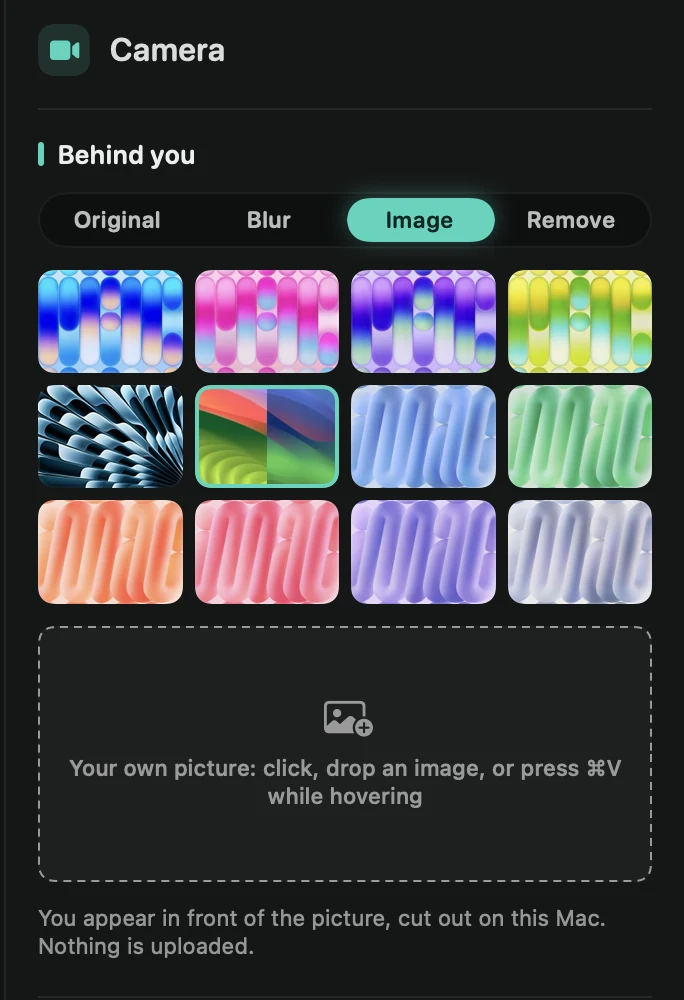
The picture is never mirrored, even when your camera is, so any text in it reads the right way round.
Good to know
- It works in the camera bubble, the split layout and full-screen camera. The Camera cutout layout always shows only you.
- Framecast does it on your Mac, after recording, so you can change it at any time.
- Something you hold up, like a folder or a mug, can count as background and get blurred or covered too.
- While the room is blurred, covered or removed, the Cutout edge section appears. Steady cutout finds your outline once for the whole video, so the edge holds still. See Camera cutout.