GuideAudio
Background music
Put a built-in track or your own song under the video. Framecast loops it, fades it in and out, and turns it down while you speak.
Add music
- Open the Audio tab in the inspector.
- Switch on Background music.
- Click one of the built-in tracks, or click Choose file… to use a song from your Mac.
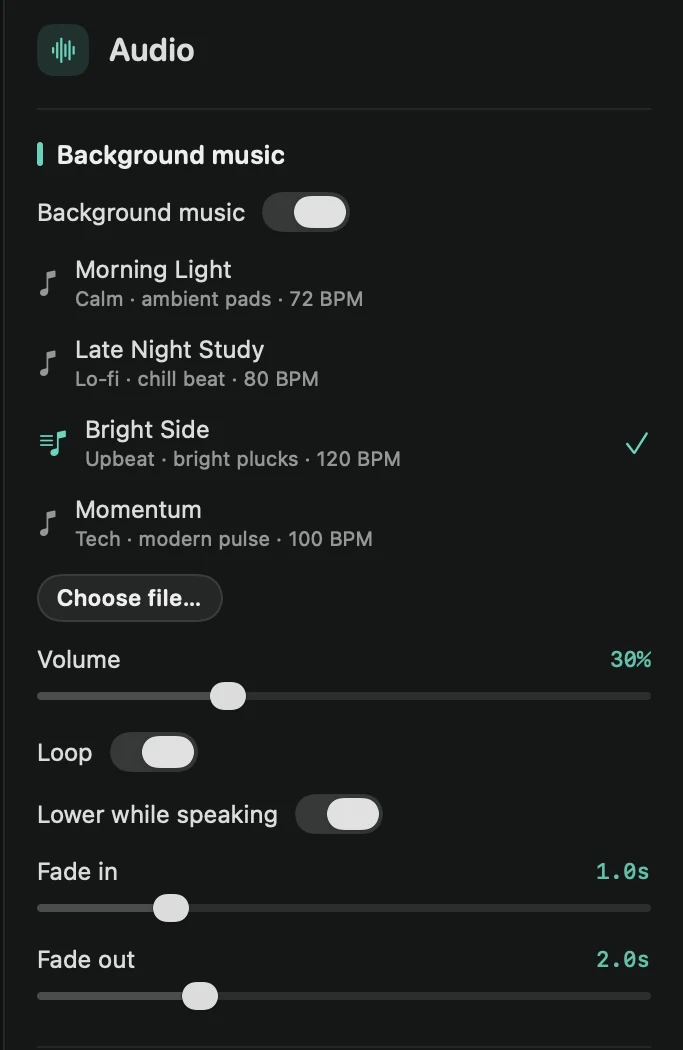
The music starts with the video. Press Space to hear it together with your voice.
Built-in tracks
Framecast comes with four royalty-free tracks:
- Morning Light: calm, with ambient pads
- Late Night Study: lo-fi, with a chill beat
- Bright Side: upbeat, with bright plucks
- Momentum: tech, with a modern pulse
When you choose your own file, Framecast keeps a copy in the project, so moving or deleting the original later doesn’t matter.
Options
- Volume: starts low, at 18%, so the music stays behind your voice.
- Loop: repeats the track until the video ends. Turn it off to play the track once.
- Lower while speaking: turns the music down to about a third while you talk, and back up in the pauses.
- Fade in and Fade out: how long the music takes to rise at the start (up to 5 seconds) and to die away at the end (up to 8 seconds).