GuideExport & share
Share a link
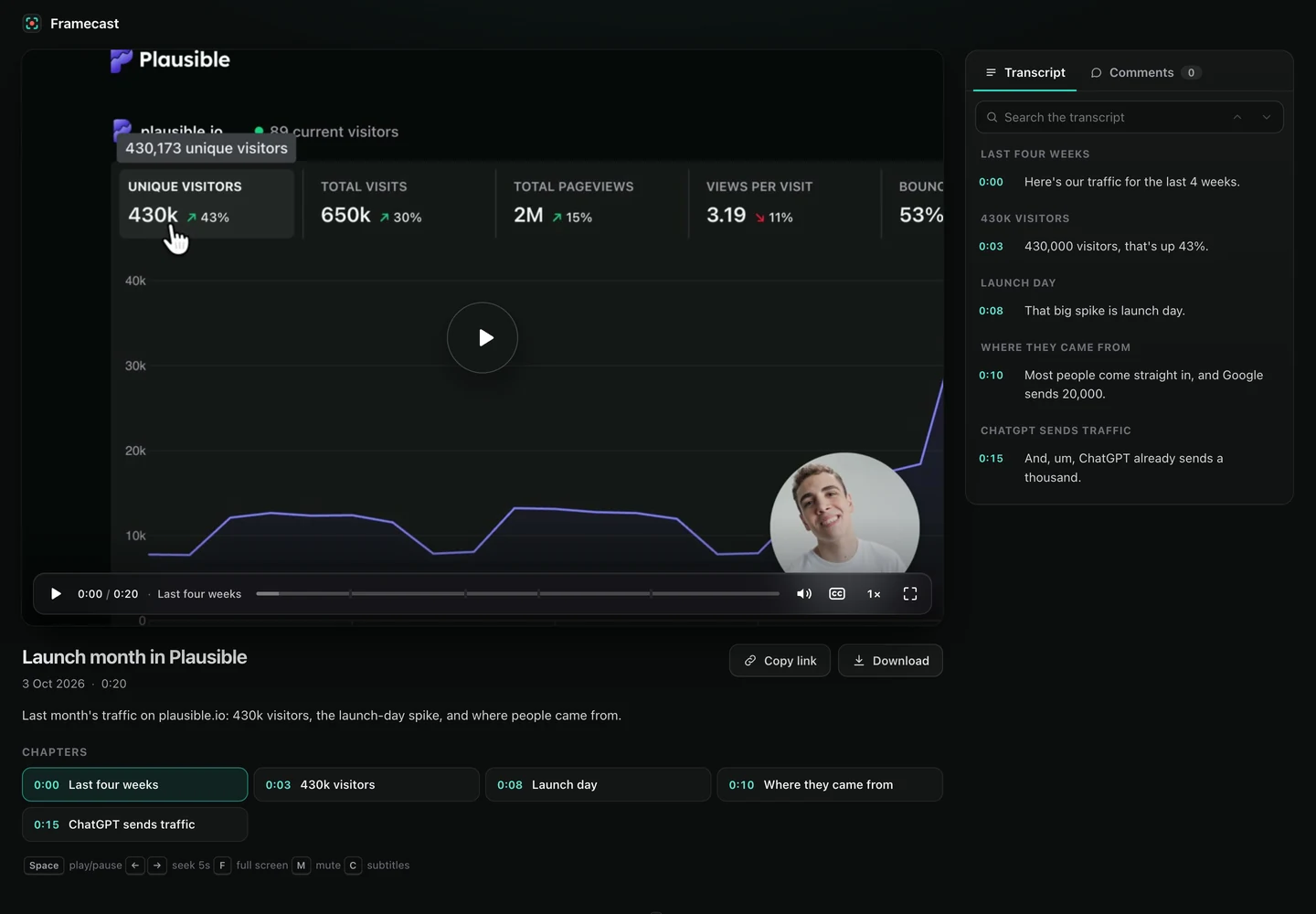
Get a link anyone can open in a browser, with chapters, a searchable transcript and comments. Framecast hosts it for you, with nothing to set up.
Make a link
Share links come with your license, pay once or monthly. Framecast hosts them at share.framecast.pro, so there’s no server to set up and nothing to sign up for. Without a license, Framecast records and edits, but can’t share.
In the editor, click Share link in the toolbar, or press ⌘K and choose Share link. You can also right-click a recording in the library, click Share on the after-recording card, or record with Record & Share.
- Framecast first looks for private info, wherever you share from. If it finds something like an email address, a phone number, an API key or a password field, it asks you: Blur and Share, Share As Is or Cancel.
- Choose who can watch: anyone with the link, people with a password, or only people you invite.
- Framecast asks before it uploads, naming share.framecast.pro and listing what it will send. Nothing leaves your Mac until you click Upload. Tick Don’t ask again to skip this question next time.
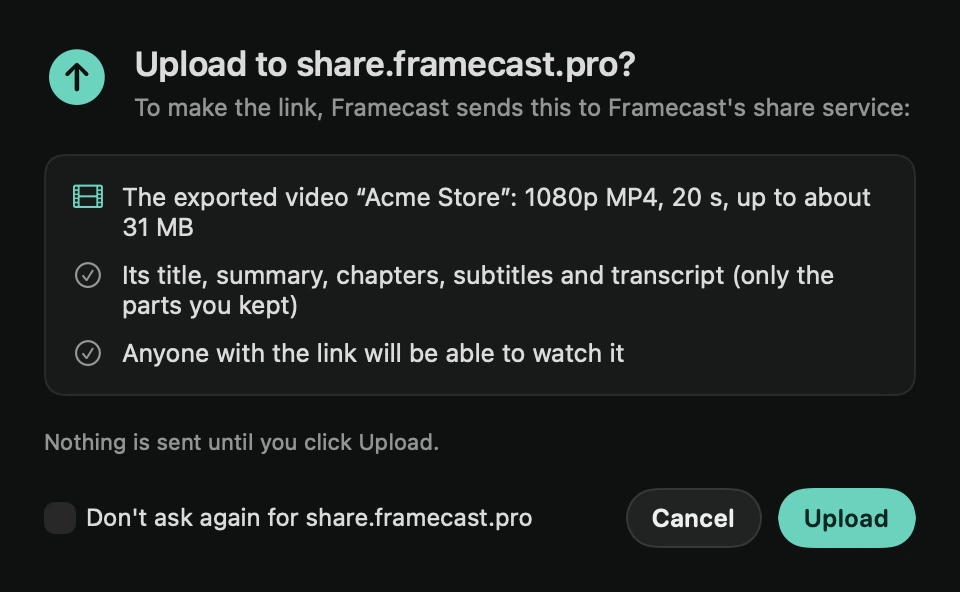
Framecast exports the video and uploads it. A card in the bottom-right corner of your screen shows how far it has got. You can close the card and keep working: it comes back when your link is ready.
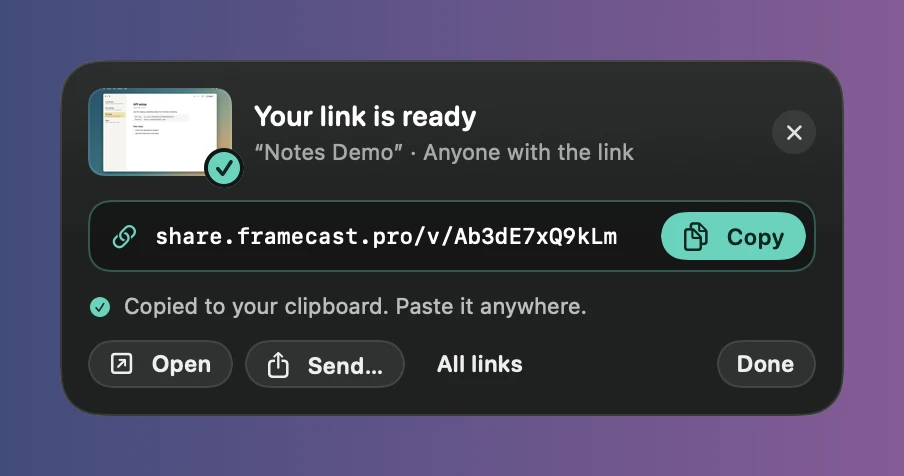
The link is already copied, so you can paste it right away. The card stays until you click Done:
- Copy copies the link again.
- Open plays the video in your browser, as viewers will see it.
- Send… sends the link with Mail, Messages, AirDrop and more.
- All links opens every link you’ve shared, at framecast.pro/account.
To find a link again later, right-click the recording in the library and choose Show share link, or press ⌘K in the editor and choose it there. If an upload fails, the card says why, with Try again.
What’s uploaded
Only the finished video: the parts you kept, with your blurs drawn in. With it go a thumbnail and its title, and, when Subtitles, transcript and chapters on the page is on, the summary, chapters, subtitles and transcript of the parts you kept. For an invite-only link, the names or emails you type go too.
Nothing else leaves your Mac: not the original recording, the project, your camera files or any other audio.
Who can watch
- Anyone with the link: anyone you send the link to can watch it.
- People with the password: viewers type the password before the video plays.
- Only people I invite: each person gets their own link. Turn one off and it stops working at once. See Private links.
Links can’t be guessed, and search engines don’t list them. When you paste a link into Slack, iMessage or another app, its preview shows the video’s title and picture only if anyone with the link can watch. Password and invite-only links show nothing about the video.
What viewers get
The watch page plays the video with subtitles, playback speed and full screen. It shows the summary and chapters from the Publish tab, and a transcript viewers can search and click to jump. Viewers can comment on the exact moment they’re watching and download the video. They don’t need an account, and a comment takes any name.
Choose what new links offer in Settings › Sharing: Allow comments, Show view count (off at first), Allow download, and Subtitles, transcript and chapters on the page. Only the parts you kept are included. A view counts once per viewer every 6 hours.
Storage and limits
Each license has 25 GB for share links: videos, their thumbnails and shared projects all count. An upload counts in full from the moment it starts.
- A video can be up to 5 GB, and a shared project up to 20 GB.
- You can make up to 100 new links a day, and 2,000 in all.
These limits may change.
Manage your links
Go to framecast.pro/account and sign in with the email you bought Framecast with. We email you a link; there’s no password. You see every link you’ve shared and how much storage they use. For each one, you can copy the link, turn comments or downloads on or off, or delete it. Deleting removes the video and its files within minutes.
To see who watched an invite-only video, invite more people or turn someone’s link off, use Framecast. See Private links.
If your license stops working
Your links stay up for a while, then they’re removed:
- 30 days after a license is refunded or turned off.
- 90 days after a monthly subscription ends or is paused.
We email you when this is scheduled, and again a week before. If your license works again in time, nothing is removed.
Note: share links aren’t a backup. Keep your own copies of what you share.
When links are busy
If share links get unusual traffic, a page may ask the viewer’s browser for a quick automatic check first. It takes about a second. In an emergency, sharing can pause for a short while. Uploads and links come back on their own.
Use your own server
Teams that need their links on their own server can run Framecast’s share server: ask us for it. Then in Settings › Sharing, under Host links on, choose Your own server and enter its Server URL and API token. Links you share after that go to your server instead of share.framecast.pro, and we don’t see them.