GuideRecording
Oops: cut a bad take
Stumbled over a sentence? Press ⌥⌘O, pause, and say it again. Framecast cuts the bad take for you when the recording opens.
How it works
- While recording, you trip over a sentence or click the wrong thing.
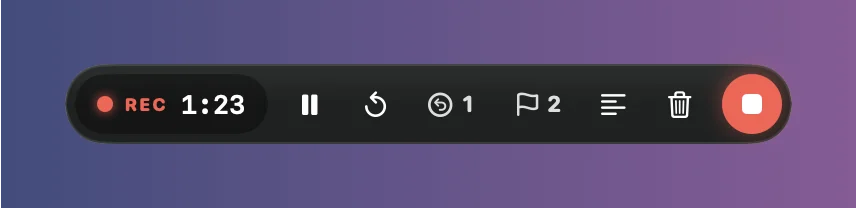
- Press ⌥⌘O, or click Oops on the recording controls. A green tick and a count confirm it.
- Pause for a moment, then say it or do it again. Keep recording.
Press Oops as often as you need. Nothing is cut while you record, and Oops only counts while the recording is running, not while it’s paused.
When the recording opens
Framecast cuts each take you marked: from where the bad take began, after your last pause, up to where your retake starts. The pause before the bad take stays, so the video still sounds natural. A message tells you how many takes were cut and how long they were.
Framecast finds the take by listening to your voice. If you weren’t talking, it goes back to the last moment your pointer and keyboard were still. One cut is never longer than 25 seconds.
Record & Copy, Record & Share and Record & Save cut the takes too, before they make the video. See After recording.
Put a take back
Press ⌘Z right away to bring the cut takes back. Later, look for the scissors badge on the timeline’s ruler where a take was cut: right-click it and choose Restore. See Edit on the timeline.
Tip: forgot to press Oops? The Transcript tab’s Clean up section finds sentences you started over and cuts them for you. See Edit with the transcript.