GuideEditing
Edit on the timeline
Split, trim, move, duplicate and delete clips, add zooms, layouts and masks on their lanes, and find your way around the timeline.
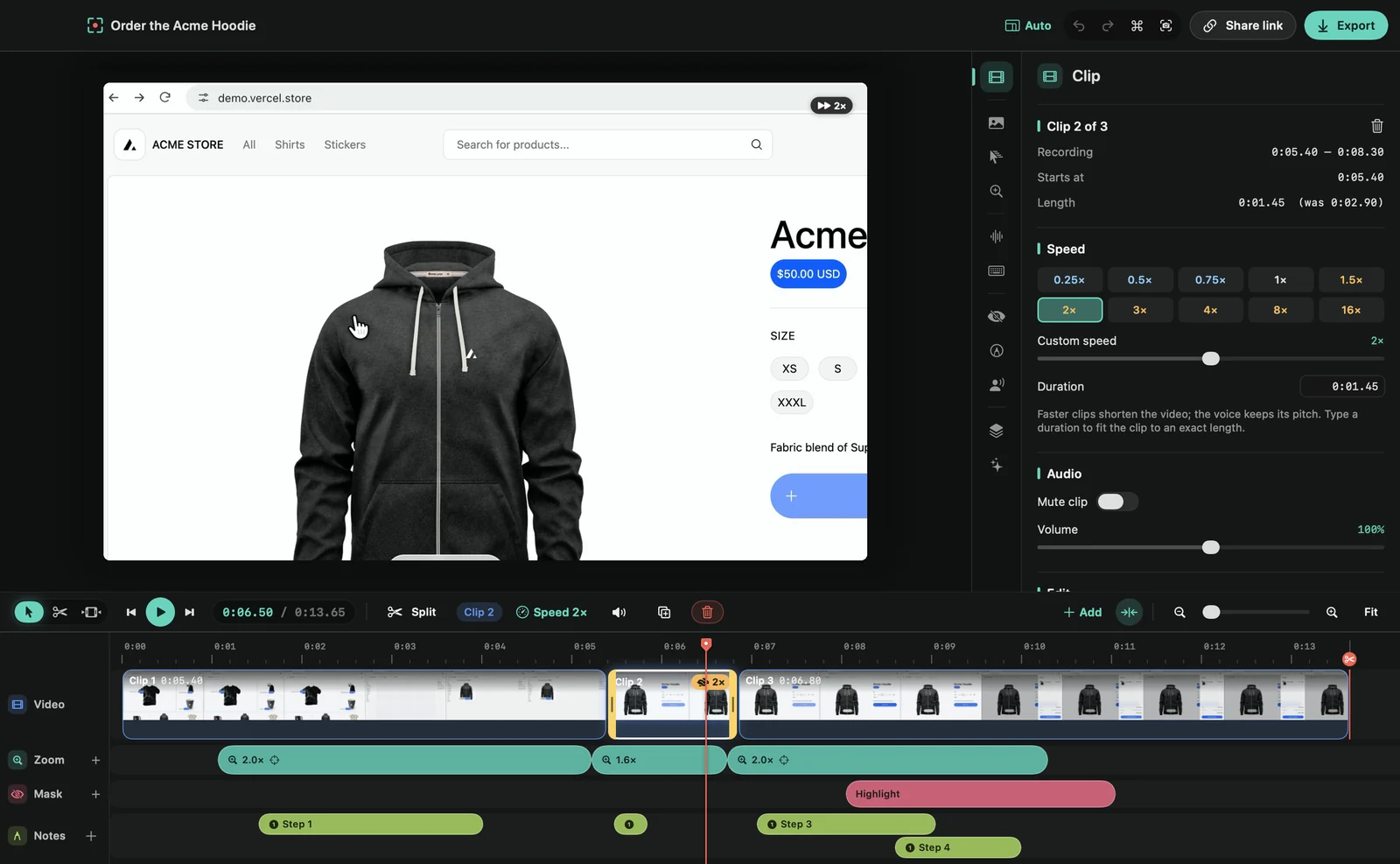
Tools
The three buttons at the left of the bar above the timeline pick a tool: Select (V) to select, trim and move clips, Blade (B) to split a clip where you click, and Range (R) to mark a stretch of time. See Work with a range.
Change clips
- Split: press S or ⌘B, or click Split, to cut the clip at the playhead.
- Trim: drag a clip’s yellow edge. Everything after it moves along, so no gap is left. A label shows the new length. Q and W trim the clip under the playhead to the playhead.
- Move: drag a clip to another place. A line shows where it will land.
- Duplicate: ⌘D puts a copy right after the clip.
- Delete: press ⌫. The gap closes.
⇧-click or ⌘-click to select several clips. Right-click a clip for more, such as Merge with Next to join two halves of a split again.
Add on a lane
Move the pointer over an empty part of the Zoom, Layout or Mask lane, and a faint outline shows where a click adds one. Click to add it there, three seconds long or as long as fits, or drag along the lane to choose how long it is. See Add and edit zooms, Camera layouts and Masks.
Copy and paste settings
Select a zoom, layout, mask or annotation and press ⌘C. Then select another one of the same kind and press ⌘V: it takes the copied settings and keeps its place on the timeline. An annotation keeps its own text and takes the other’s type, color and size. With none of that kind selected, ⌘V adds a copy at the playhead.
With nothing selected, ⌘C copies the frame under the playhead as a picture.
Get around
- Jump: ↑ and ↓ go to the previous or next edit.
- Snapping: edges snap to the playhead, to clip edges and to the edges of zooms and other blocks. Press N or click the snapping button to turn it off.
- Timeline zoom: press = and −, drag the slider, pinch, or ⌘-scroll. Fit (⇧Z) shows the whole video.
Cuts and markers
A scissors badge on the ruler marks each place where part of the recording was cut out. Click it to go there, or right-click it and choose Restore to put that part back. Restore all cuts in the Clip tab brings back the whole recording as one clip at normal speed.
Green flags on the ruler are markers you added while recording with ⌃⌥⌘F. Click one to go there, or right-click it to delete it.