GuideAnnotations & privacy
Annotations
Add step numbers, text callouts, arrows and boxes that point at what matters and stay on target while the camera zooms.
Add an annotation
- Move the playhead to where it should appear.
- Open the Annotations tab and, under Add at the playhead, click Number, Text, Arrow or Box.
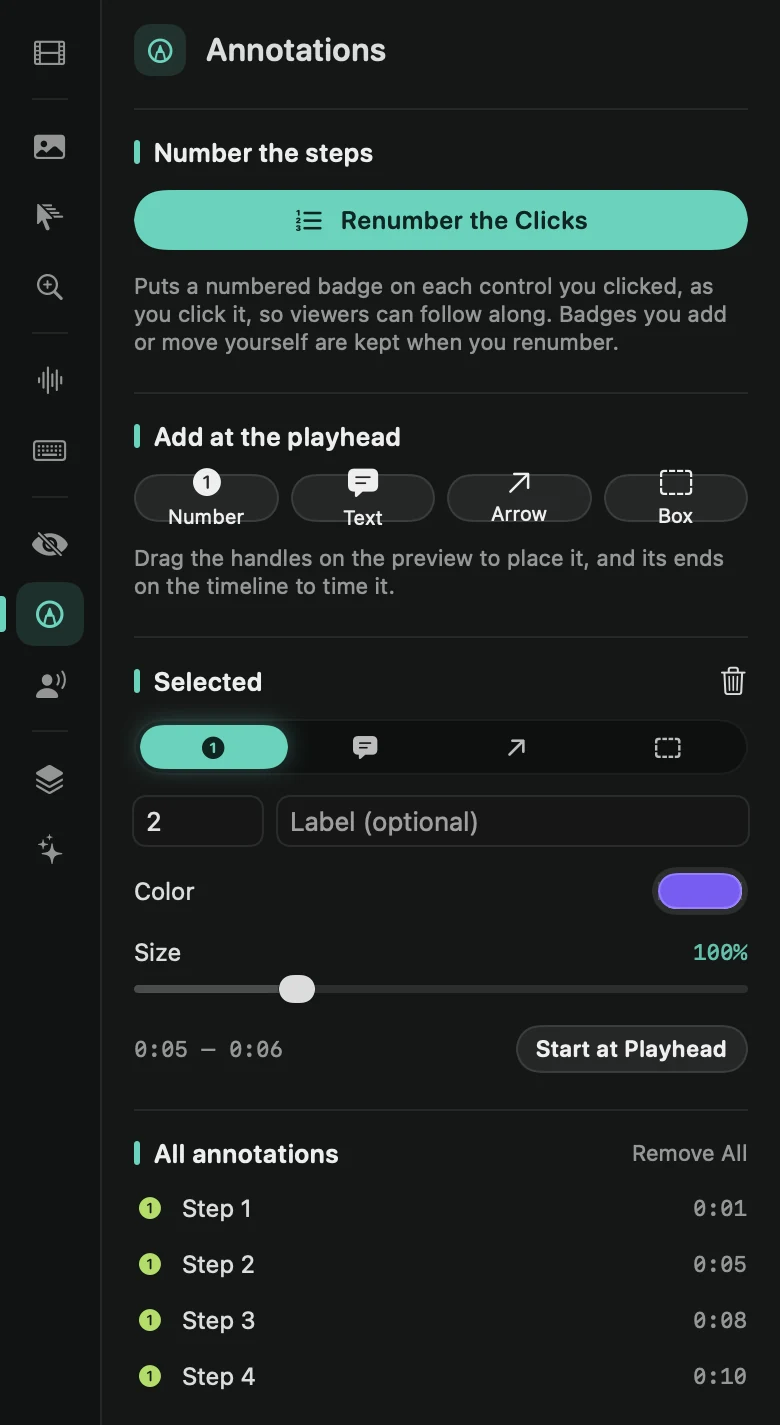
It appears where your pointer was at that moment and lasts three seconds. A box goes around the control you clicked closest to that moment. You can also use the + on the Notes lane or + Add › Annotation, or click an empty spot on the Notes lane to add a text callout.
Place it
Select an annotation and handles appear on the preview. Drag a number or a callout by its handle. Drag either end of an arrow. Drag a box to move it, or drag a corner handle to resize it. Annotations are pinned to the recording, so they stay on target while the camera zooms and pans.
Change it
Under Selected, pick another type, then set the Number and an optional Label for a step number, or the Text for a callout. Color and Size (50% to 250%) work for every type.
To give other annotations the same look, select one and press ⌘C, then select another and press ⌘V. It gets the same type, color and size, and keeps its own text and place. With no annotation selected, ⌘V adds a copy at the playhead.
Time it
Each annotation is a block on the Notes lane. Drag the block to move it, or drag its edges to show it for longer. Start at Playhead moves it so it starts at the playhead. Annotations that overlap get a second row.
To remove one, select it and press ⌫, or right-click its block and choose Remove. Remove All clears every annotation.
Tip: Framecast can number every click for you. See Number the clicks.