GuideEditing
Aspect ratio
Make your video wide, square, vertical or 4:5 for feed posts. Zooms, the camera and captions re-arrange for each shape.
Pick a shape
Click the aspect ratio menu in the toolbar (it shows the current shape, such as Auto), or open the Background tab and use the tiles under Aspect ratio.
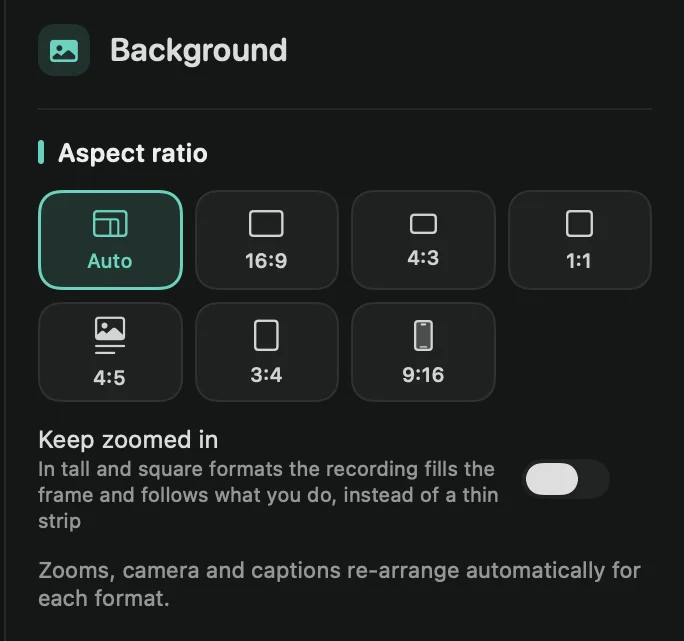
Auto keeps the shape of your recording. The others are Wide 16:9, Standard 4:3, Square 1:1, Feed post 4:5, Portrait 3:4 and Vertical 9:16. Feed post 4:5 fits posts in the Instagram, Facebook and LinkedIn feeds. For phone videos, see Vertical video.
Zooms, the camera and captions re-arrange automatically for each format. You can change the shape at any time; nothing needs to be recorded again.
Keep zoomed in
A wide recording in a square or tall video ends up as a thin strip. With Keep zoomed in on, the recording fills the frame instead and follows what you do. Your zooms still zoom in further from there.
Framecast switches it on for you when you go from a wider shape to 1:1, 4:5, 3:4 or 9:16. Switch it off under Aspect ratio or in the toolbar menu. It’s grayed out when the video isn’t narrower than your recording, because there’s nothing to fill.
Tip: to cut away the edges of the recording itself, use Crop the recording.