GuideZooms
Frame what you click
When you click into a menu or a dialog, the automatic zoom fits the whole thing on screen instead of a fixed area around your pointer.
What it does
Framecast notes what you click, not only where. When it places automatic zooms, it uses that to decide how far to zoom in:
- A button or a control: the zoom fits the control with some room around it.
- Something in a menu, dialog, sheet or popover: the zoom fits the whole menu or dialog, so viewers see every option. While you work inside it, the camera holds still instead of following your pointer.
- A one-line text field: while you type in it, the zoom frames the whole field.
The zoom never goes deeper than your Default zoom level. See Zoom defaults.
Turn it on or off
- Open the Zoom tab in the inspector on the right.
- Under Automatic zoom, switch Frame what you click on or off.
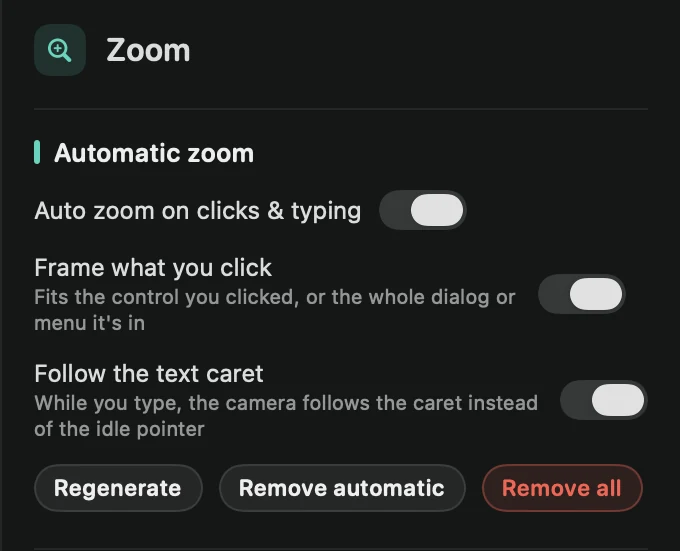
It’s on for new recordings. Switching it places the automatic zooms again right away. Zooms you added yourself stay as they are.
It needs Accessibility
Framecast learns which control you clicked through the Accessibility permission. If it wasn’t allowed when you recorded, the Zoom tab tells you the recording doesn’t know which controls were clicked, and zooms follow your pointer as usual. Allow it before your next recording. See Permissions.
Tip: a sheet or dialog that covers most of the screen is too big to fit. In that case the zoom frames the control you clicked instead.