GuideRecording
Record an iPhone or iPad
Plug in your iPhone or iPad with a cable and record its screen and sound. In the editor it sits in a drawn device frame.
Connect and record
- Connect your iPhone or iPad to your Mac with a USB cable.
- Unlock it. If it asks “Trust This Computer?”, tap Trust and enter your passcode.
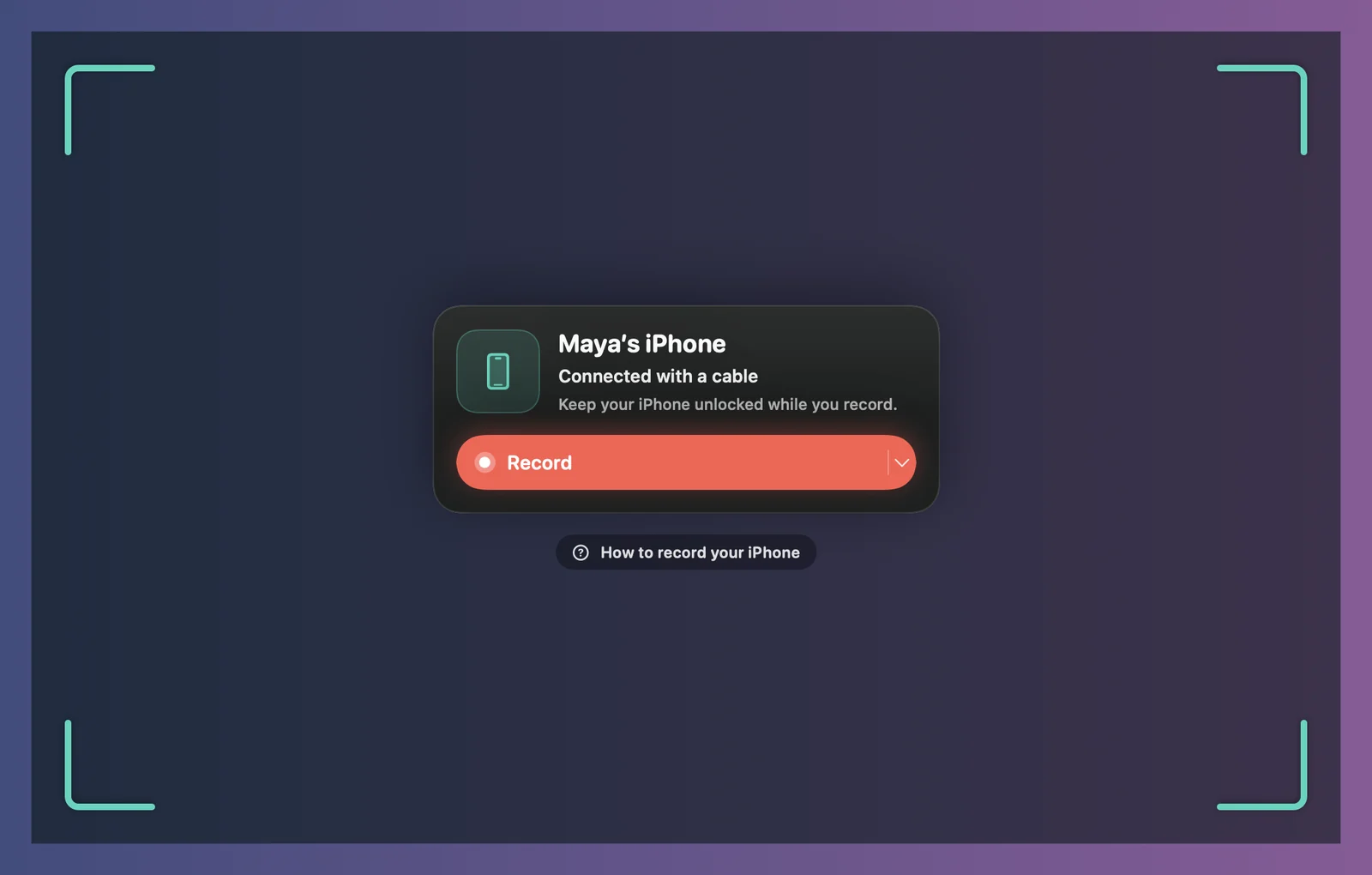
- On the recording bar, click Device or press 4. After a few seconds the card shows the device’s name and “Connected with a cable”.
- Press ↩ or click Record. Keep the device unlocked while you record.
The device’s sound is recorded too, and your camera and microphone work as usual. Turn on Do Not Disturb on the device to keep notifications out of the video.
If it doesn’t show up
- Unlock your iPhone and tap “Trust”: it’s plugged in but not trusted yet. It shows up a few seconds after you tap Trust. Still waiting? Unplug the cable and plug it in again.
- No iPhone or iPad: Framecast doesn’t see a device. Check the cable and unlock the device.
- With more than one device connected, right-click Device on the bar to switch. Look for devices again is at the bottom of that list.
Click How to record your iPhone under the card to see these steps on screen.
In the editor
The recording opens inside a drawn device frame. Change its color, or turn it off, in the Device tab. See Device frame.
There’s no pointer on a phone, so Framecast doesn’t add zooms by itself. Add them where you need them. See Add and edit zooms.