GuideCaptions & transcript
Captions
Framecast writes captions from your voice, on your Mac, and draws them into the video. Pick a style, then export them as subtitles if you need a file.
Turn captions on
Captions come from the transcript of your microphone. Framecast makes it on your Mac with Apple’s speech models, so your voice never leaves your computer.
- Open the Captions tab in the inspector on the right. It’s there when the recording has microphone audio.
- Switch on Show captions.
- No transcript yet? Press Transcribe in the Transcription section.
Captions follow your edits: words you cut from the video leave the captions too. If a name comes out wrong, see Transcription language.
When Framecast transcribes, it times each word to your voice, so a word shows up when you say it, not in the pause before it.
Choose a style
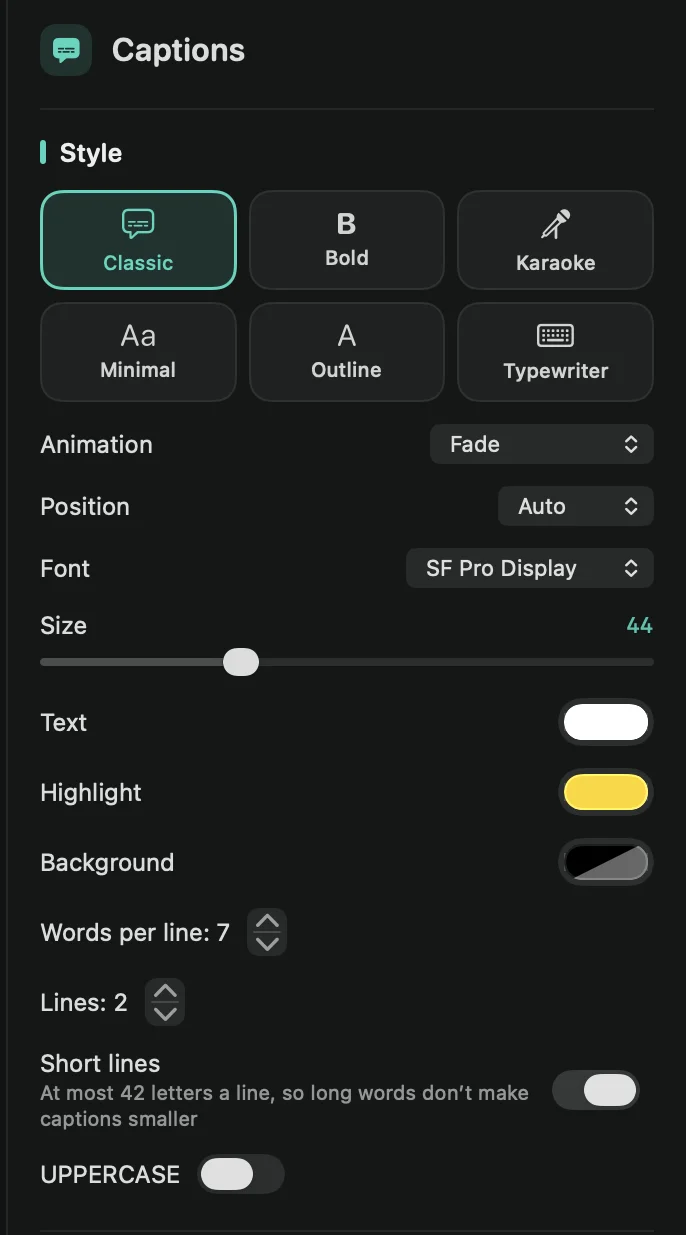
Pick Classic, Bold, Karaoke, Minimal, Outline or Typewriter, then adjust it:
- Animation: how the words come in. None, Fade, Pop, Slide up or Word by word.
- Position: Bottom, Top or Middle. Auto keeps them at the bottom and moves them to the top when your pointer is in the way.
- Font and Size.
- Text, Highlight and Background colors. Highlight marks the word being spoken in Bold, Karaoke and Outline. Background is the pill behind Classic captions.
- Words per line and Lines (up to 3) set how much text shows at once.
- Short lines: at most 42 letters a line, so a line of long words doesn’t make the captions smaller. New recordings have it on.
- UPPERCASE writes every word in capitals.
Export the captions
Under Export, press SRT… or VTT… to save a subtitle file for YouTube, Vimeo or a video player, or Text… for the plain transcript. The timings match your edited video, and words you cut are left out. Subtitles in another language are on the Publish tab. See Publish.
Tip: press ⌘K and type “captions” to show or hide them without opening the tab.