GuideAnnotations & privacy
Find private info
Framecast reads your recording for API keys, emails, phone and card numbers and password fields, and blurs them in one click.
What it looks for
Framecast reads the text on screen every half second, including text you type while you record. It looks for:
- API keys, such as Stripe, OpenAI, Anthropic, GitHub, AWS, Slack and Google keys, and other secret-looking tokens.
- Email addresses, card numbers and phone numbers, international ones included.
- Password fields you clicked.
It all runs on your Mac. The text it reads never leaves it.
Scan and blur
- Open the Masks tab.
- Under Find private info, click Scan the recording. A bar shows “Reading the screen…”.
- Check the list. Each item shows what kind it is, a shortened preview and when it appears; click the time to see it. Untick anything you want to leave visible.
- Click Blur all, or Blur with a number when you unticked some.
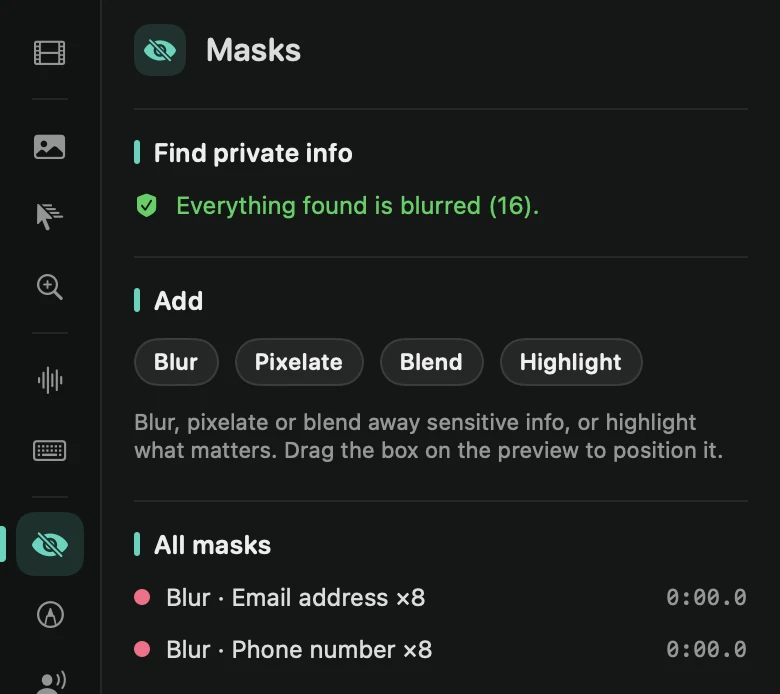
When everything is covered, it reads “Everything found is blurred (16).” The blur masks follow the text when it scrolls, and you can adjust them like any other mask. See Masks. To scan and blur in one step, choose Find and blur private info in the command menu.
The check before you share
Whenever you share a link, from the editor, the library or the after-recording card, Framecast checks again (“Checking for private info…”). If anything isn’t covered, it says “This video shows things that look private” and lists it, with Blur and Share, Share As Is and Cancel.