GuideRecording
After recording
Choose what happens when you stop: open the editor, or skip it and copy, share or save the finished video from a small card.
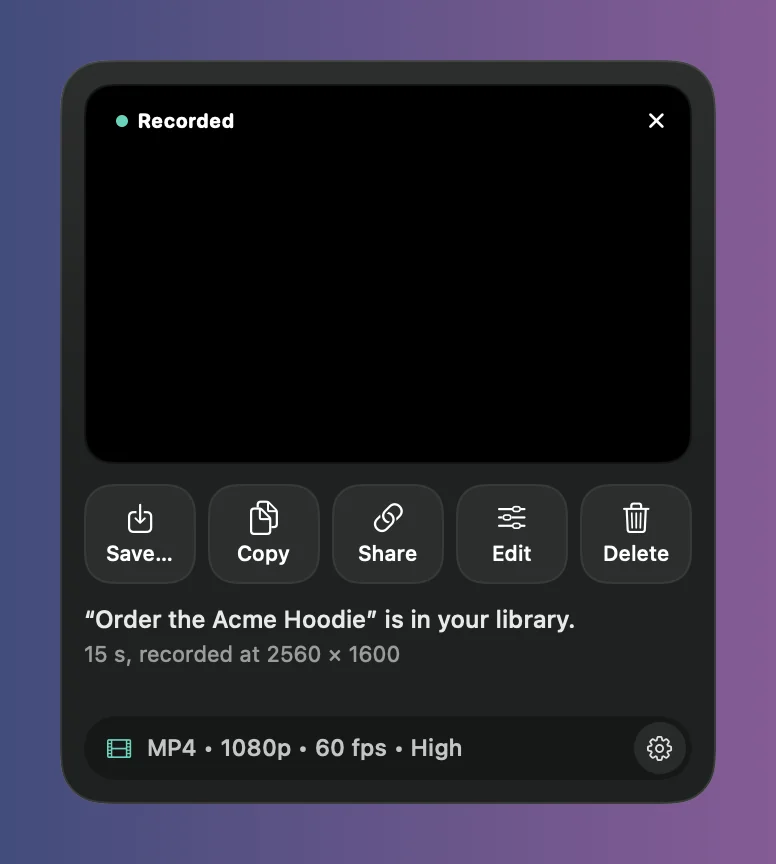
Choose before you record
Click the arrow on the Record button. Under After recording, pick one:
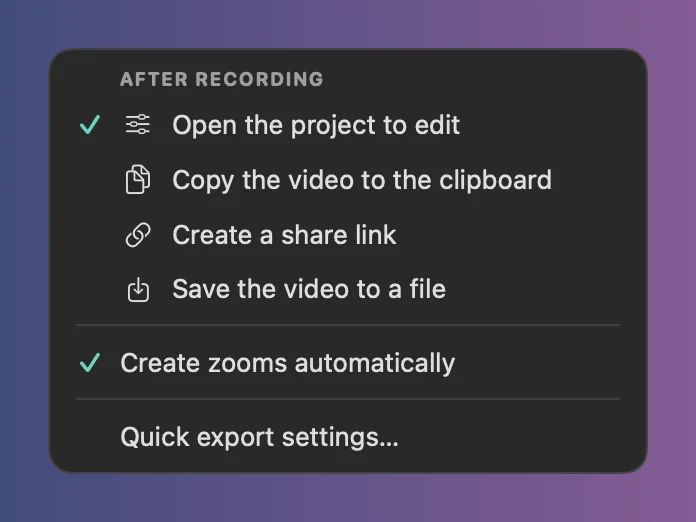
- Open the project to edit: the editor opens when you stop.
- Copy the video to the clipboard, Create a share link or Save the video to a file: the button becomes Record & Copy, Record & Share or Record & Save. When you stop, the card appears and makes the video right away, with the automatic zooms and the look the editor would give it. The editor stays closed, and the recording stays in your library.
Framecast remembers your choice. Create zooms automatically, in the same menu, decides whether new recordings get zooms at all.
The card
The card sits in the bottom-right corner. Click the preview to open the editor, or use the buttons: Save… asks where to save the video, Copy puts it on the clipboard to paste in any app, Share uploads it and copies a link, which stays on the card with Copy and Open (see Share a link), Edit opens the editor and Delete moves the recording to the Trash.
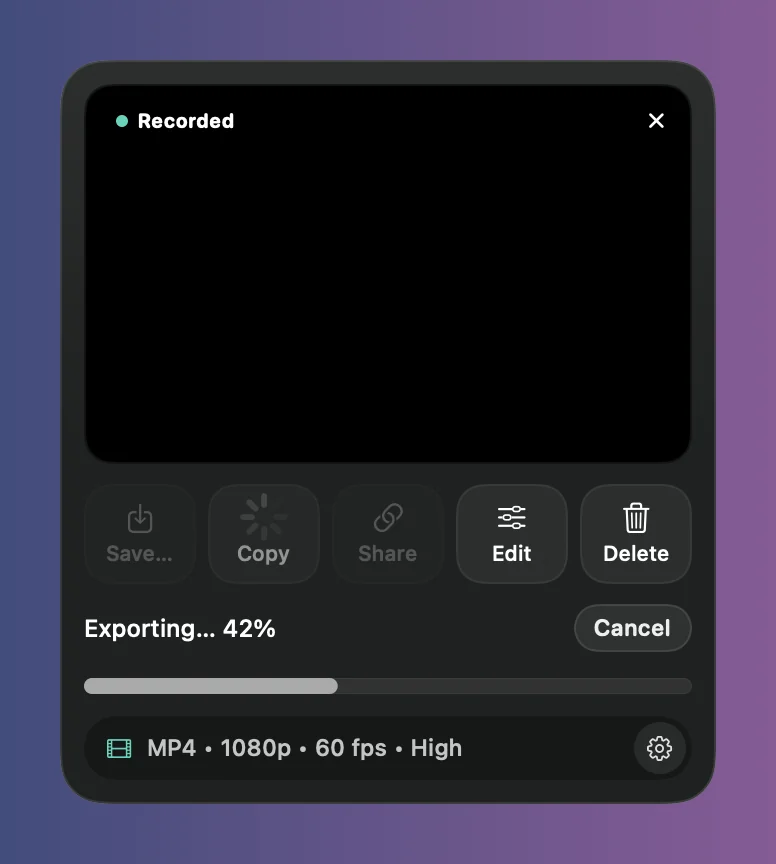
The card hides itself after a few seconds, but not while it’s working, while it shows a link, or while your pointer is on it. To stop it appearing, untick Show the after-recording card in the gear menu. Record & Copy, Share and Save still show it while they work.
Quick export settings
Copy, Share and Save use the settings at the bottom of the card, such as “MP4 • 1080p • 60 fps • High”. Click the gear there, or Quick export settings… in the Record button’s menu, to choose MP4 or GIF, the frame rate, resolution and quality, and the folder Record & Save uses. If you turn off Keep the project after Copy, Share or Save, closing the card asks whether to keep the recording in your library.