GuideRecording
Camera and microphone
Add yourself and your voice. Pick a camera and a microphone on the recording bar; each is recorded on its own, so you can change it later.
Camera
Click the Camera button on the recording bar and pick a camera. Your iPhone can be the camera too. A round preview of you appears; drag it anywhere. It’s only there to help you frame yourself and never shows up in the screen recording.
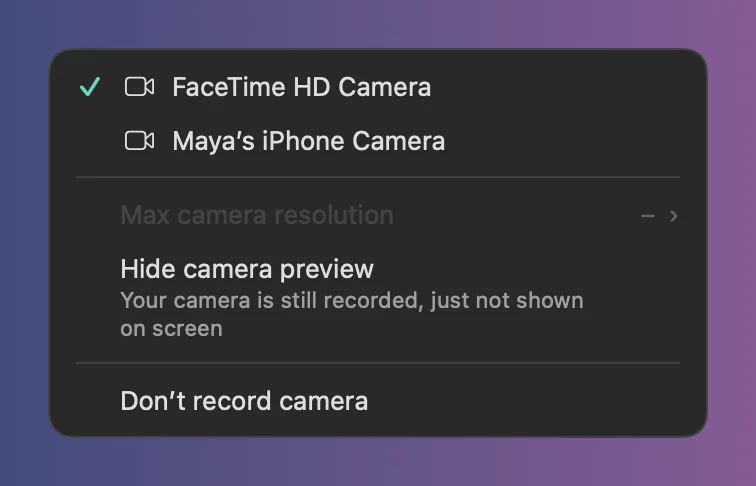
- Max camera resolution: 720p, 1080p or 4K, at 30 frames a second. Only sizes your camera can do are offered.
- Hide camera preview: hides the bubble. Your camera is still recorded.
- Don’t record camera: turns the camera off.
The camera is saved as a separate video. In the editor you choose where it goes, its shape and size, or cut yourself out of your background. See Camera bubble.
Microphone
Click the Microphone button and pick a microphone. The ring around its icon moves with your voice, so you can check the level before you start.
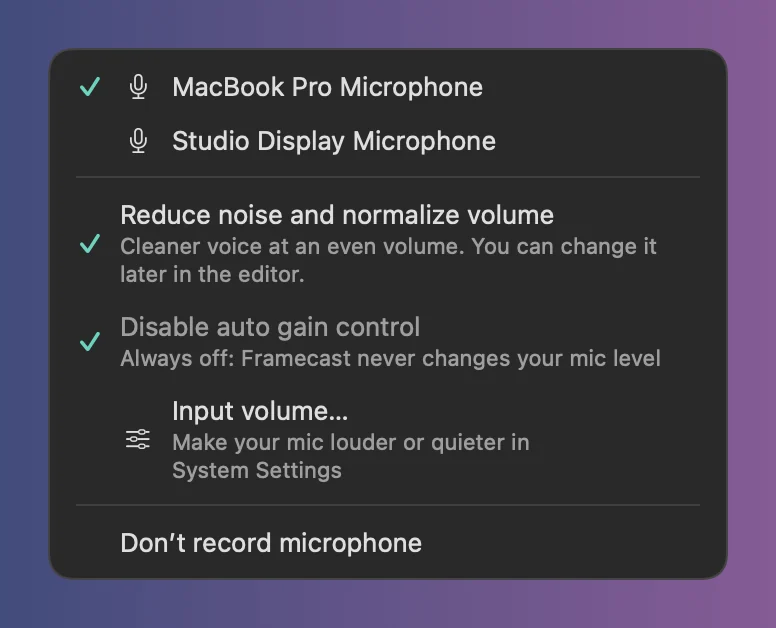
- Reduce noise and normalize volume: new recordings start with Noise reduction in the editor’s Audio tab. Nothing is baked in, so you can change it later. See Voice enhancement.
- Disable auto gain control is always ticked: Framecast never turns your mic up or down while you record.
- Input volume… opens System Settings, where you set how loud your mic is.
- Don’t record microphone: turns the mic off.